Set up TekLan VPN on Debian

Install the TekLan VPN app from our package repository and connect with WireGuard, OpenVPN or ProtoTek. Or import a WireGuard profile from the Dashboard.

Debian 13 (trixie)GNOMEKDE Plasma

Tested with the Linux beta on Debian 13 with GNOME and with KDE Plasma. Debian 12 cannot run the app: use the WireGuard tab.

Setup steps

Choose how to connect

TekLan VPN app for Linux (beta)

Install the app on Debian

The TekLan VPN app for Linux is in beta. It connects with WireGuard, OpenVPN or ProtoTek, has a leak test, and can start when you sign in.

Before you begin

  • A 64-bit Intel or AMD PC (x86-64) running one of the releases above.
  • An account that can use sudo to install packages.
  • Your TekLan VPN email address and password.

Steps

Install

  1. Open a terminal and add the TekLan VPN package repository, then install the app:
    sudo curl -fsSLo /etc/apt/keyrings/teklan-vpn.gpg https://pkg.teklanvpn.com/teklan.gpg
    sudo curl -fsSLo /etc/apt/sources.list.d/teklan-vpn.sources https://pkg.teklanvpn.com/apt/beta.sources
    sudo apt update && sudo apt install tek-lan-vpn
  2. Enter your password when sudo asks. The app then updates with the rest of your system.

Optional: OpenVPN

  1. WireGuard and ProtoTek work straight away. OpenVPN in the app needs OpenVPN 2.7.8 or later, which Debian 13 has in its backports repository (skip this if you only use WireGuard or ProtoTek):
    echo "deb http://deb.debian.org/debian trixie-backports main" | sudo tee /etc/apt/sources.list.d/trixie-backports.list
    sudo apt update && sudo apt install -t trixie-backports openvpn
    sudo apt install network-manager-openvpn

Sign in and connect

  1. Open TekLan VPN from your apps menu and sign in with your TekLan VPN email address and password.
  2. If your desktop asks you to create or unlock a keyring (KDE calls it a wallet), do so: TekLan VPN keeps its sign-in key there, so you stay signed in after a restart.
  3. Choose a location under Locations, go back to Connect and select Connect. The app says Protected when you are connected.
  4. To start TekLan VPN when you sign in to your computer, turn on Start TekLan VPN when you sign in in Settings.

Check the connection

  1. The app says Protected and shows the address you now appear from.
  2. In Settings, VPN settings, DNS, select Run leak test. It should say No leaks found.
  3. Select Disconnect and confirm normal internet access returns.

If it does not connect

  • Check that the computer has internet access before you connect, and disconnect any other VPN.
  • If OpenVPN says it needs OpenVPN 2.7.8 or later, choose WireGuard or ProtoTek in VPN settings, or install a newer OpenVPN as shown above.
  • If the app asks you to sign in again after a restart, unlock your keyring or wallet when your desktop asks.
  • Copy the details from Settings, Diagnostics into a support ticket if it still does not connect.

Still stuck? See the help articles, or open a support ticket with the exact error you see.
WireGuard on Debian

Import a Dashboard profile into NetworkManager

No app needed: create a WireGuard profile in the Dashboard and add it to Debian’s network settings. For OpenVPN 3 or wg-quick, see the Linux guide.

Before you begin

  • Have permission to add a network connection.
  • Create a separate Dashboard profile for this computer.

Get the profile on this computer

  • Download profile: save the .conf file on the device you are setting up.
  • Email: select Send profile, then Send email. The Dashboard sends the .conf attachment to your account email address.
  • Device access code: select Send profile, then Get code. On the device you are setting up, open dash.teklanvpn.com/get, enter the code and select Download profile. The code expires after 15 minutes and works once. Generating another code replaces it.

Steps

Create the profile

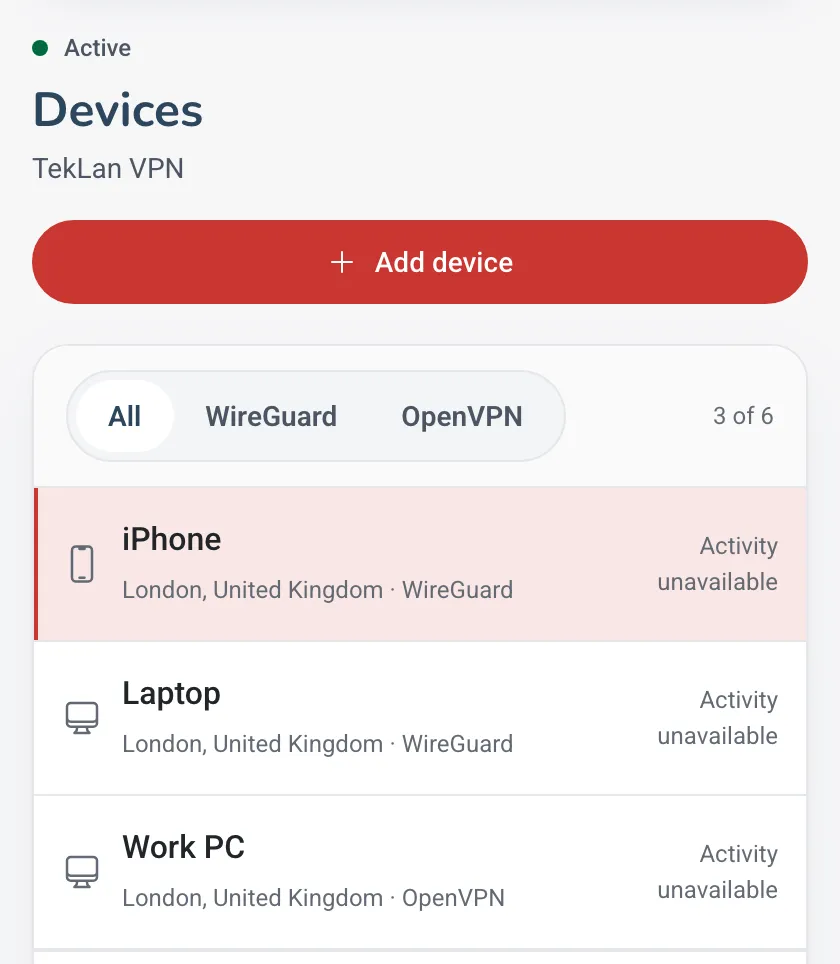
  1. Sign in to the client area, open your active VPN service and select Manage VPN Dashboard.
  2. Select Add device.
    Devices page in the TekLan VPN Dashboard with the Add device button above the list of devices
    Add device starts a new profile.
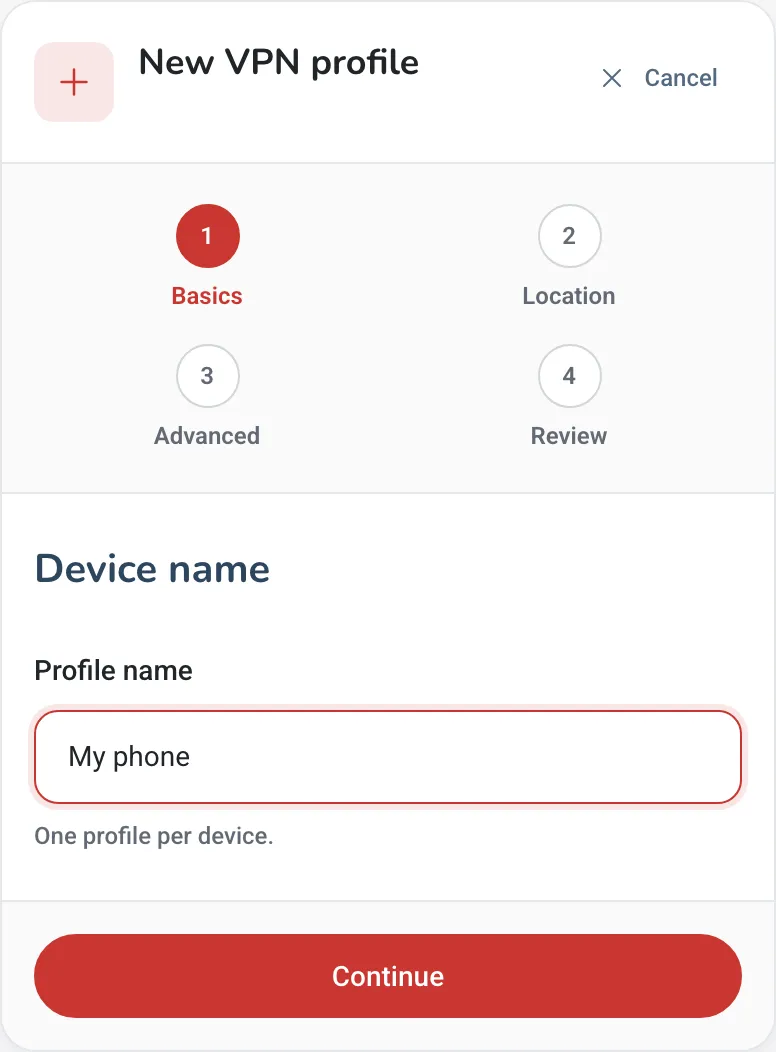
  3. Type a name you will recognise for this computer and select Continue.
    New VPN profile, step 1 of 4: the profile name box
    One profile for each device.
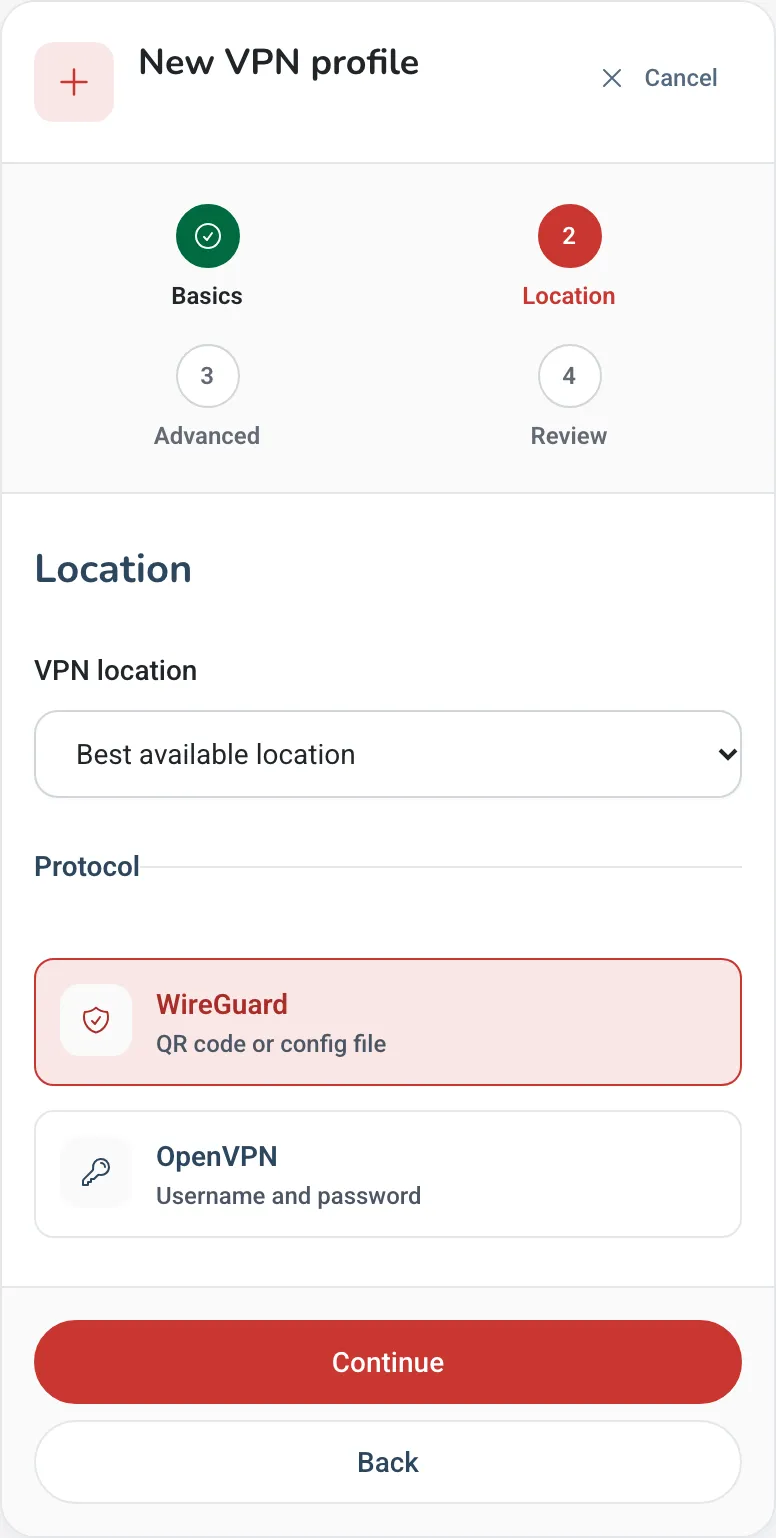
  4. Keep Best available location or pick a location, choose WireGuard and select Continue.
    New VPN profile, Location step: a VPN location menu and WireGuard selected as the protocol
    Choose WireGuard.
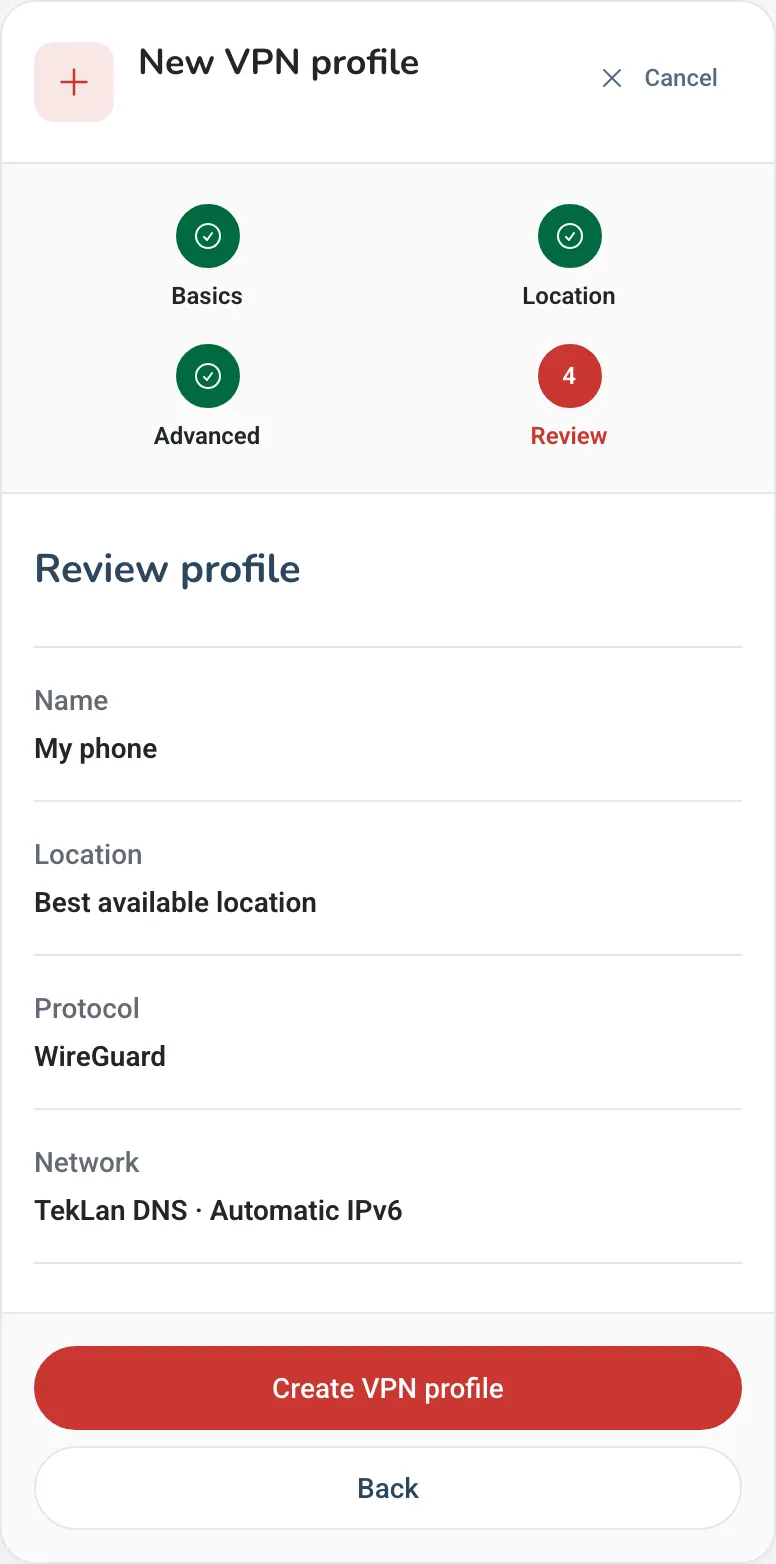
  5. Select Continue again (the advanced options can stay as they are), check the summary and select Create VPN profile.
    New VPN profile, Review step: name, location, protocol and network, with the Create VPN profile button
    Check the details, then create the profile.
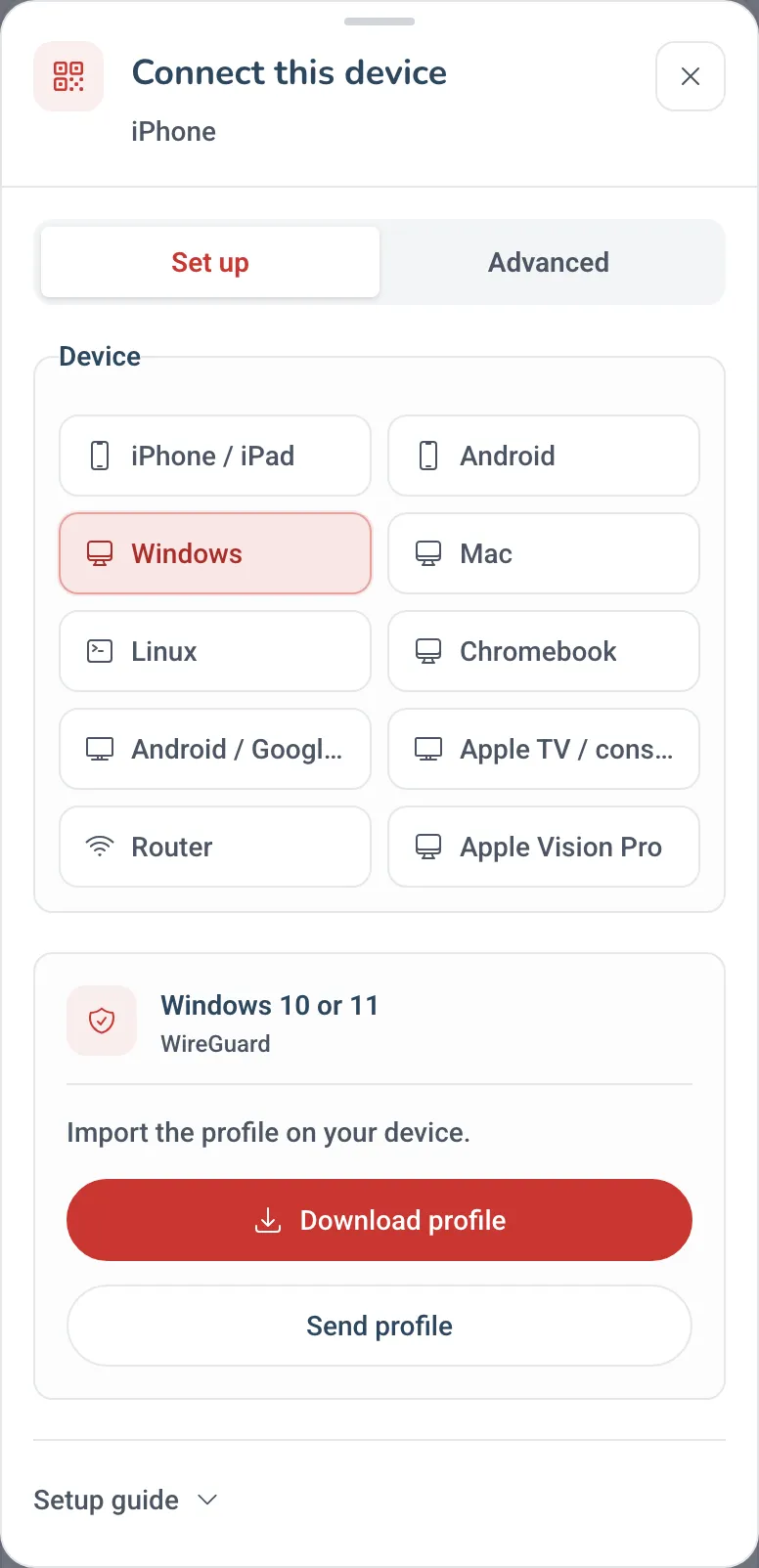
  6. When the profile shows Ready, select Set up this device, choose your computer and select Download profile. Your browser saves a .conf file.
    Connect this device window with Windows selected and the Download profile and Send profile buttons
    Download profile saves the WireGuard file.

Import and connect

  1. Open Settings, Network (or your desktop’s network settings), add a VPN and choose to import it from a file. Select the .conf file you downloaded.
  2. Or, in a terminal: nmcli connection import type wireguard file ~/Downloads/profile.conf, using the real file name.
  3. Switch the new connection on from the network menu.

Check the connection

  1. Confirm the imported WireGuard tunnel remains switched on.
  2. Check that the operating system VPN indicator appears where supported.
  3. Open a browser and confirm the public IP address changes.
  4. Switch the tunnel off and confirm normal internet access returns.

If it does not connect

  • Disconnect any other active VPN application or tunnel.
  • Delete the failed tunnel and import a newly generated .conf file.
  • Confirm the system date and time are correct.
  • Note the exact WireGuard error before opening a support ticket.

Still stuck? See the help articles, or open a support ticket with the exact error you see.
“WireGuard” and the “WireGuard” logo are registered trademarks of Jason A. Donenfeld.

Frequently asked

Which Debian versions does the TekLan VPN app work on?

Debian 13 (trixie) on a 64-bit Intel or AMD PC, with GNOME, KDE Plasma or another desktop that runs NetworkManager. Debian 12 is too old for the app; use a WireGuard profile there.

Does it work with KDE Wallet?

Yes. On KDE the app keeps its sign-in key in KDE Wallet or the GNOME keyring, whichever your desktop uses. Create or unlock the wallet when KDE asks.