
Set up TekLan VPN

One plan covers them all. Find your device below.

No app for your device?

Make a profile in the VPN Dashboard: sign in at teklanvpn.com/account and select VPN Dashboard on Home.

WireGuard

QR code, download, email or device code

  1. Select Add device and give the device a recognisable name.
  2. Choose WireGuard and complete the profile.
  3. Scan the QR code, download the .conf file, send it by email or use Send profile to generate a one-time code for dash.teklanvpn.com/get.
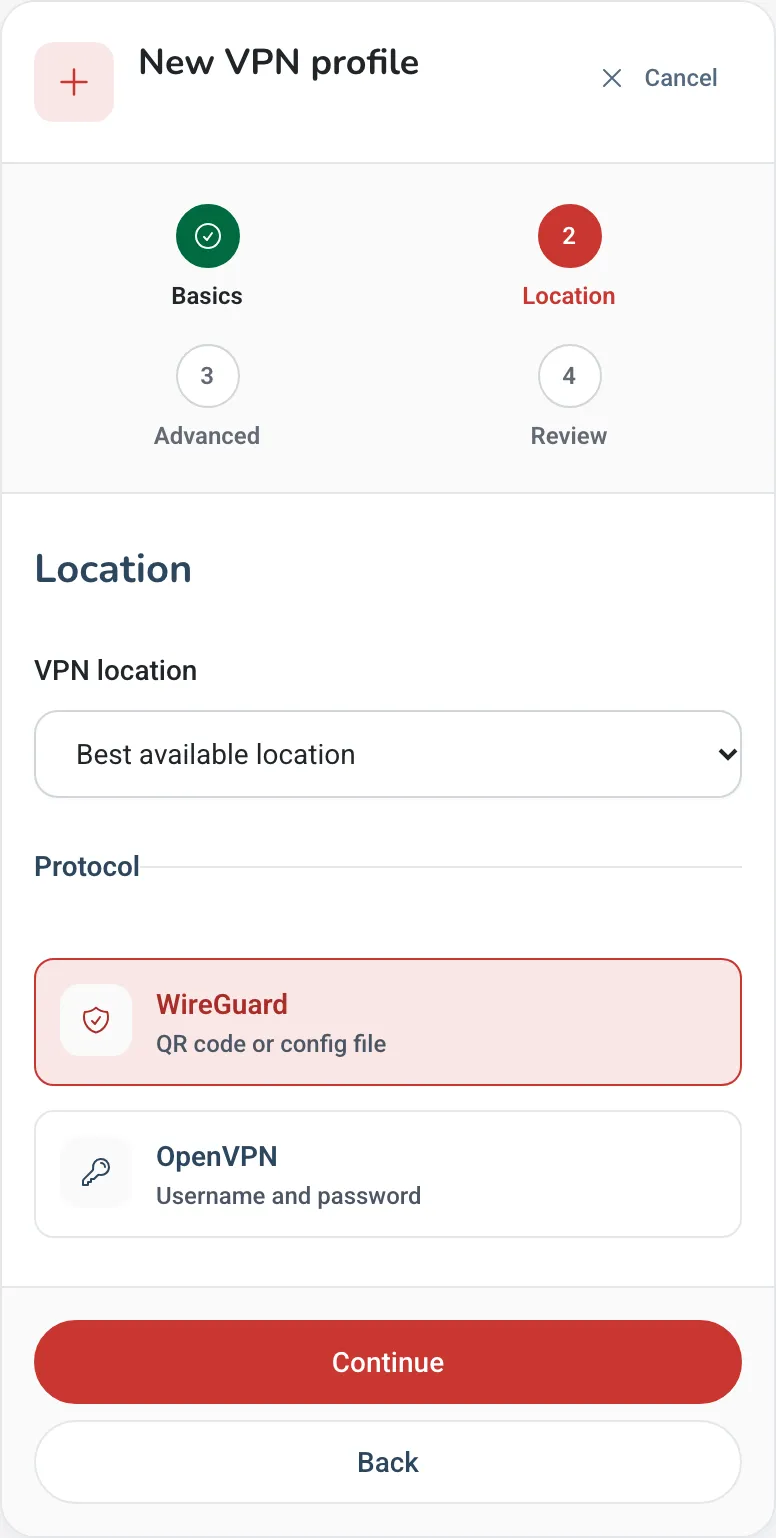
WireGuard selected while creating a profile in the TekLan VPN Dashboard
OpenVPN

.ovpn file and credentials

  1. Select Add device and give the device a recognisable name.
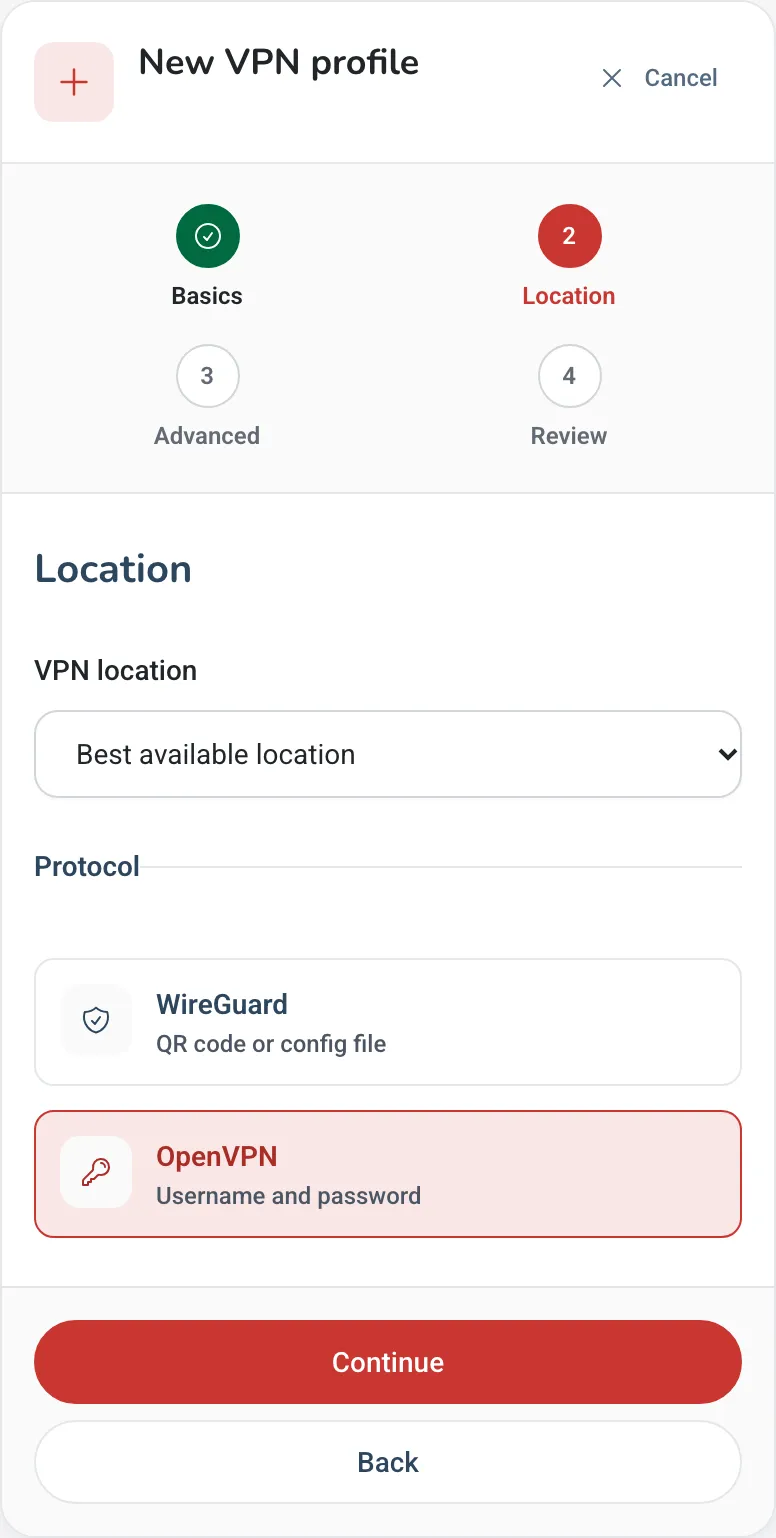
  2. Choose OpenVPN and complete the profile.
  3. Download the .ovpn file, or send it by email from Send profile, then use Show OpenVPN credentials for the profile username and private-key password.
OpenVPN selected while creating a profile in the TekLan VPN Dashboard

How the apps connect

WireGuard and OpenVPN, with ProtoTek arriving in TekLan VPN 5.0 for networks that block VPNs. The browser extensions use ProxTek. Which protocol to use

“WireGuard” and the “WireGuard” logo are registered trademarks of Jason A. Donenfeld. OpenVPN® and the keyhole logo are registered trademarks of OpenVPN.

Not sure which guide you need? Tell our UK support team what device you have and we will point you in the right direction.

Ask for help