Setup guides

What are you setting up?

Choose your device first. We will show you whether to use the TekLan VPN app, WireGuard or OpenVPN through the Dashboard. To see what each app does, browse the TekLan VPN apps.

Manual setup in the Dashboard

Choose the configuration your device supports

Both start in the client area at teklanvpn.com/account: open your active VPN service and select Manage VPN Dashboard.

WireGuard

QR code, download, email or device code

  1. Select Add device and give the device a recognisable name.
  2. Choose WireGuard and complete the profile.
  3. Scan the QR code, download the .conf file, send it by email or use Send profile to generate a one-time code for dash.teklanvpn.com/get.
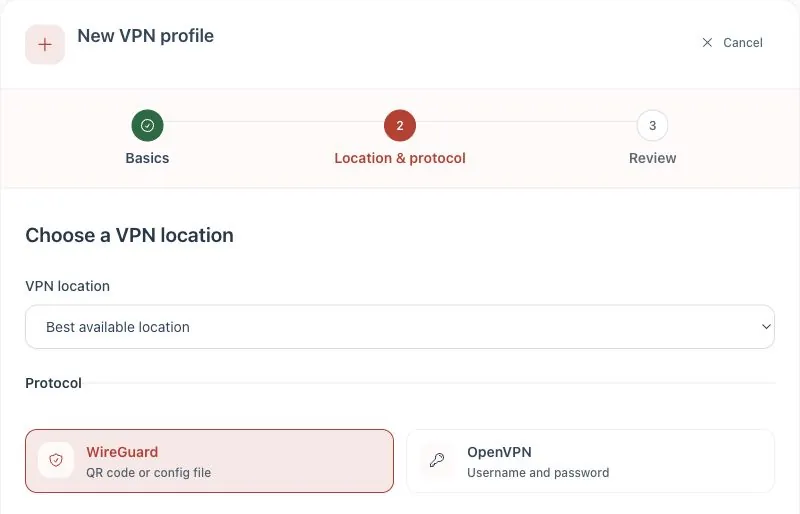
WireGuard selected while creating a profile in the TekLan VPN Dashboard
OpenVPN

.ovpn file and credentials

  1. Select Add device and give the device a recognisable name.
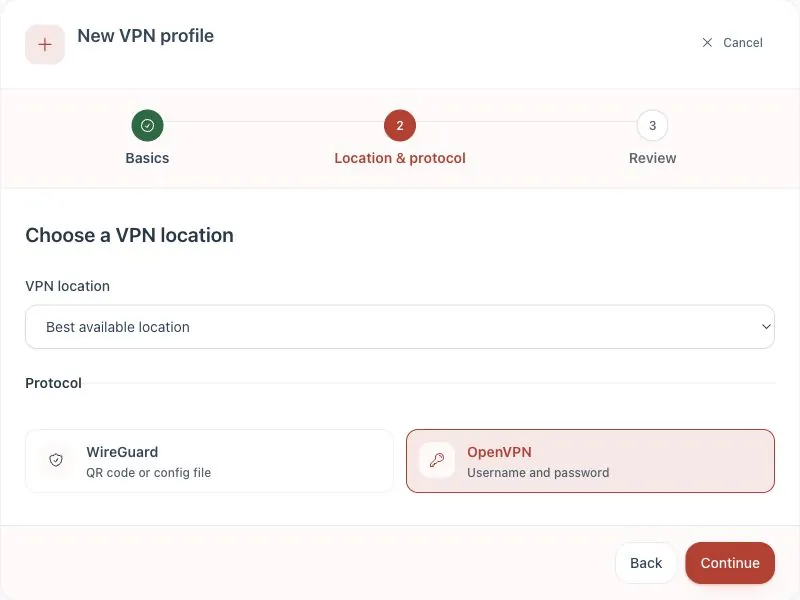
  2. Choose OpenVPN and complete the profile.
  3. Download the .ovpn file, or send it by email from Send profile, then use Show OpenVPN credentials for the profile username and private-key password.
OpenVPN selected while creating a profile in the TekLan VPN Dashboard

Not sure which guide you need? Tell our UK support team what device you have and we will point you in the right direction.

Ask for help