Install the TekLan VPN app from the Amazon Appstore or use the direct APK installation route.
TekLan app for Fire Stick
Install from the Amazon Appstore or direct download
Use the Fire Stick Appstore route first. The direct APK route is available when the app cannot be installed from the device listing. The current Amazon Appstore version is 4.0.2.
Before you begin
Connect Fire Stick to the internet.
Have your TekLan VPN client-account email address and password ready.
Allow app installation and the system VPN connection request when prompted.
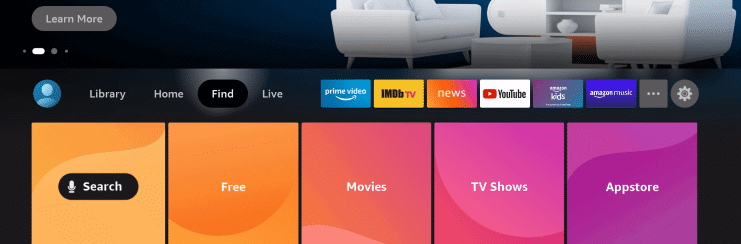
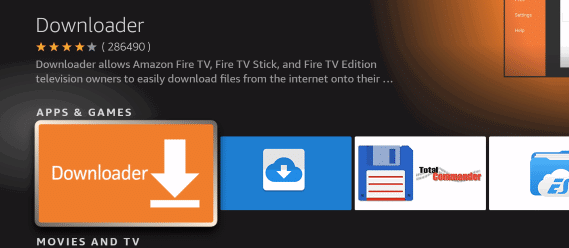
1. Open Find on the Fire Stick and search for TekLan VPN.2. Use Downloader for the direct APK route when required.
Complete the setup
Open Find on the Fire Stick and search the Amazon Appstore for TekLan VPN.
Install the app, sign in with your registered email address and password, select a server and connect.
For direct installation, install the Downloader app and allow it to install applications when Fire OS requests permission.
In Downloader, enter teklanvpn.com/latest.apk or code 5937995. The current APK is version 4.0.2.
Install the downloaded APK, open TekLan VPN and sign in.
Approve the Fire OS VPN connection request when prompted.
Check the connection
Confirm the TekLan VPN app reports Connected.
Check that the system VPN indicator remains visible where Fire Stick displays one.
Open a browser or IP-checking application and confirm the public IP address changes.
Disconnect in the TekLan app and confirm normal internet access returns.
If it does not connect
Confirm Fire Stick has internet access before starting the VPN.
Disconnect any other VPN application.
Approve the system VPN connection request if it appears again.
If using the APK route, remove incomplete downloads and download a fresh copy from the TekLan address shown above.