Android TV setup

Set up TekLan VPN on Android TV

Install the TekLan VPN app from Google Play or use the direct APK on a supported Android-based television device.

Google Play
Version 4.5.0
Direct download
Version 4.6.0
Get it on Google Play

No Google Play? In Downloader, enter teklanvpn.com/latest.apk

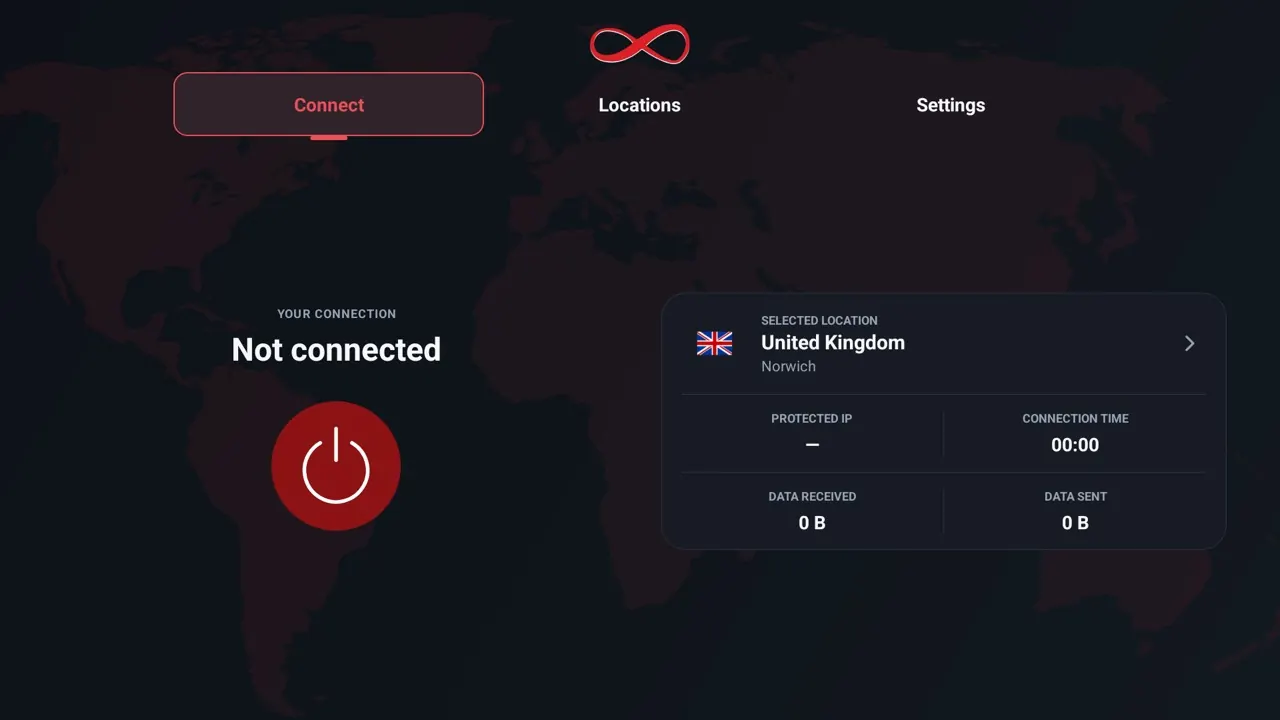
TV Connect screen with the selected location and connection details

Set it up

Choose how to connect

TekLan VPN app for Android TV

Install TekLan VPN on Android TV

Install from Google Play first; the direct APK is the fallback.

Before you begin

  • Connect Android TV to the internet.
  • Have your TekLan VPN email address and password ready.
  • Allow app installation and the system VPN connection request when prompted.

Steps

  1. Open Google Play on the Android TV and search for TekLan VPN.
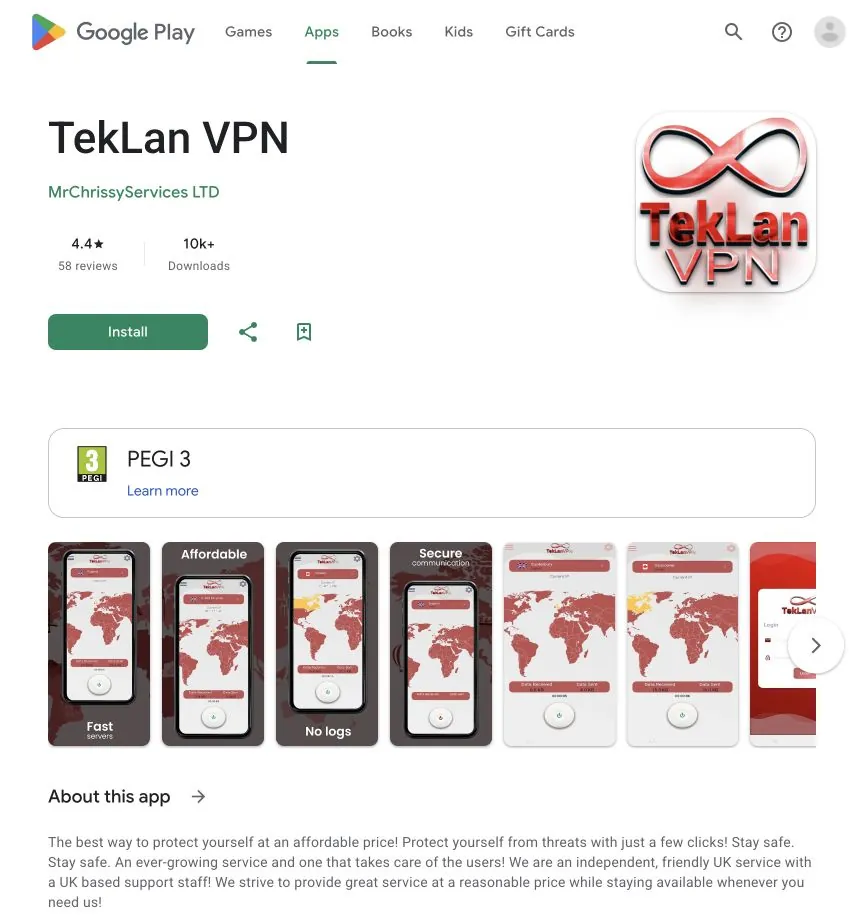
    TekLan VPN listing on Google Play
    Find the official TekLan VPN app on Google Play.
  2. Install and open TekLan VPN. To sign in, go to teklanvpn.com/tv on your phone or computer and enter the code shown on the TV, or scan the QR code with your phone. You can also type your TekLan VPN email address and password on the TV.
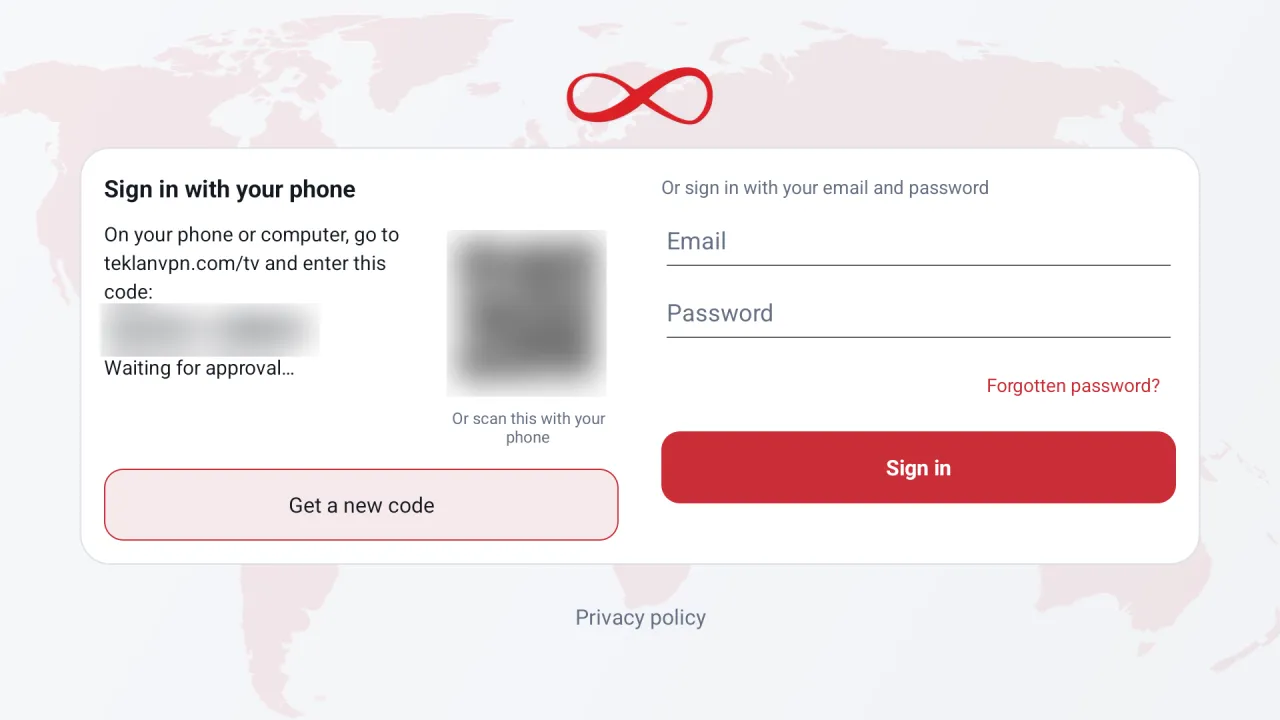
    TekLan VPN sign-in screen on a TV: Sign in with your phone with a code and QR code (blurred in this picture), or sign in with email and password
    Enter the TV code at teklanvpn.com/tv, or sign in on the TV.
  3. Open Locations and choose where you want to appear to be.
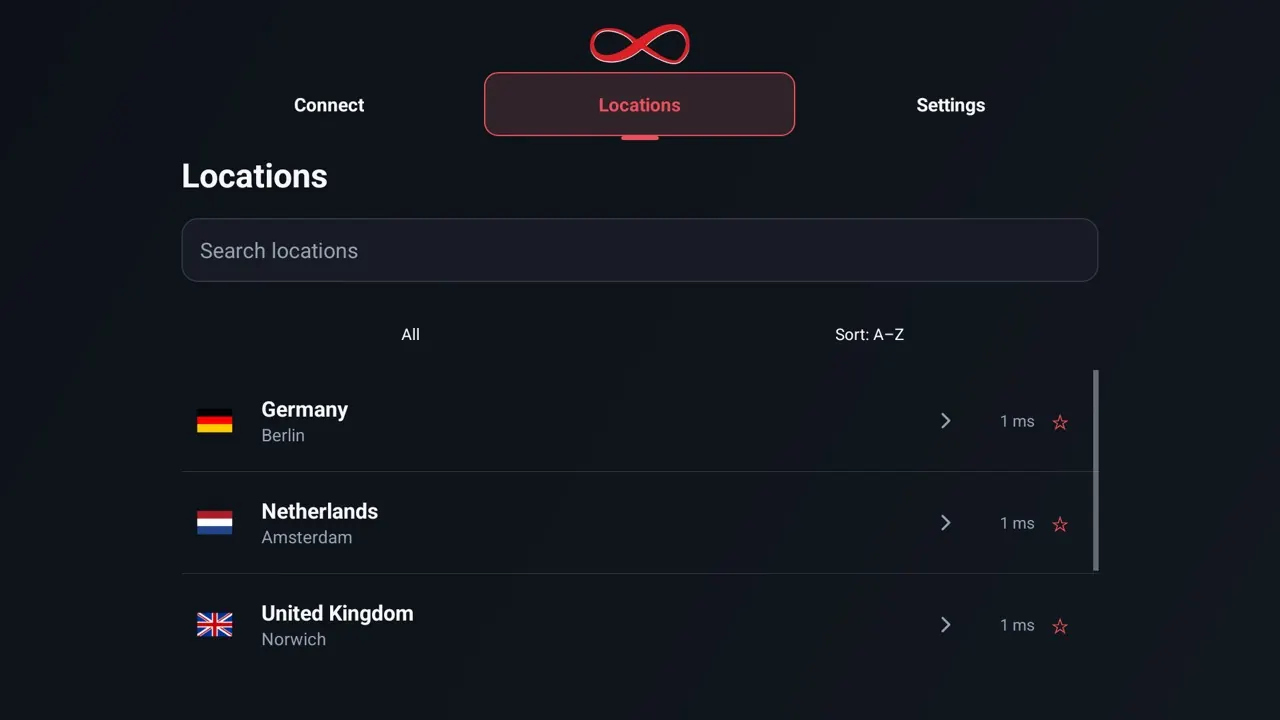
    TV Locations screen: a search box and a list of locations with their ping
    Pick a location with the remote.
  4. Go back to Connect and select the power button. The first time, approve the VPN connection request with OK.
    TV Connect screen with the power button, the selected location and connection details
    Select the power button to connect.
  5. If Google Play does not offer the app on the Android TV, install Downloader and allow installation from that source.
  6. In Downloader, enter teklanvpn.com/latest.apk or code 5937995, then install and open TekLan VPN. The current APK is version 4.6.0.

Get it on Google Play

Check the connection

  1. Confirm the TekLan VPN app reports Connected.
  2. Check that the system VPN indicator remains visible where Android TV displays one.
  3. Open a browser or IP-checking application and confirm the public IP address changes.
  4. Disconnect in the TekLan app and confirm normal internet access returns.

If it does not connect

  • Confirm Android TV has internet access before starting the VPN.
  • Disconnect any other VPN application.
  • Approve the system VPN connection request if it appears again.
  • If using the APK route, remove incomplete downloads and download a fresh copy from the teklanvpn.com address shown above.

Still stuck? See the help articles, or open a support ticket with the exact error you see.
Manual alternative

Set up WireGuard on Android TV

Use this when you want a Dashboard-generated WireGuard profile instead of signing in to the TekLan VPN app.

Before you begin

  • Install WireGuard from Google Play on Android TV.
  • Create a separate WireGuard profile for this device in the TekLan VPN Dashboard.

Move the profile to Android TV

  • Download profile: download the .conf file using a browser or file manager available on Android TV.
  • Email: select Send profile, then Send email. The .conf file arrives at your account email address; most TVs have no mail app, so save it from a computer to a USB drive or network folder the TV can read.
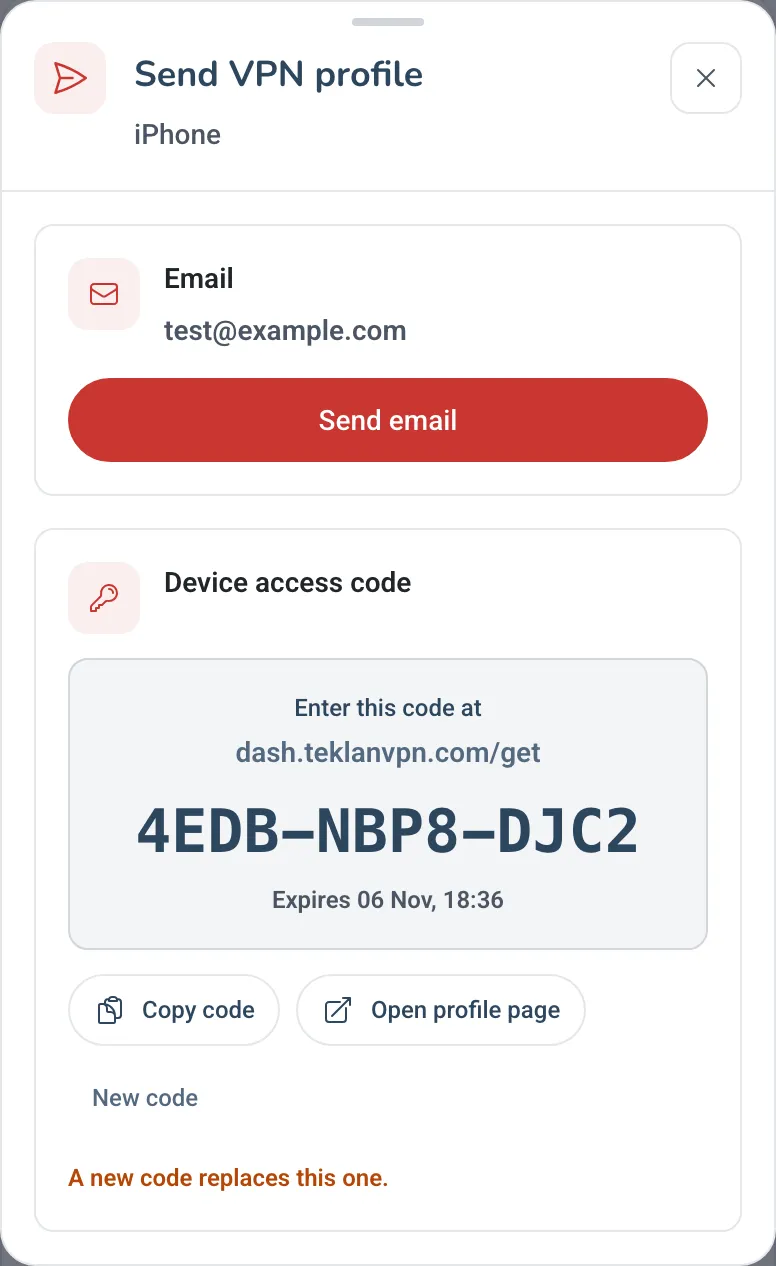
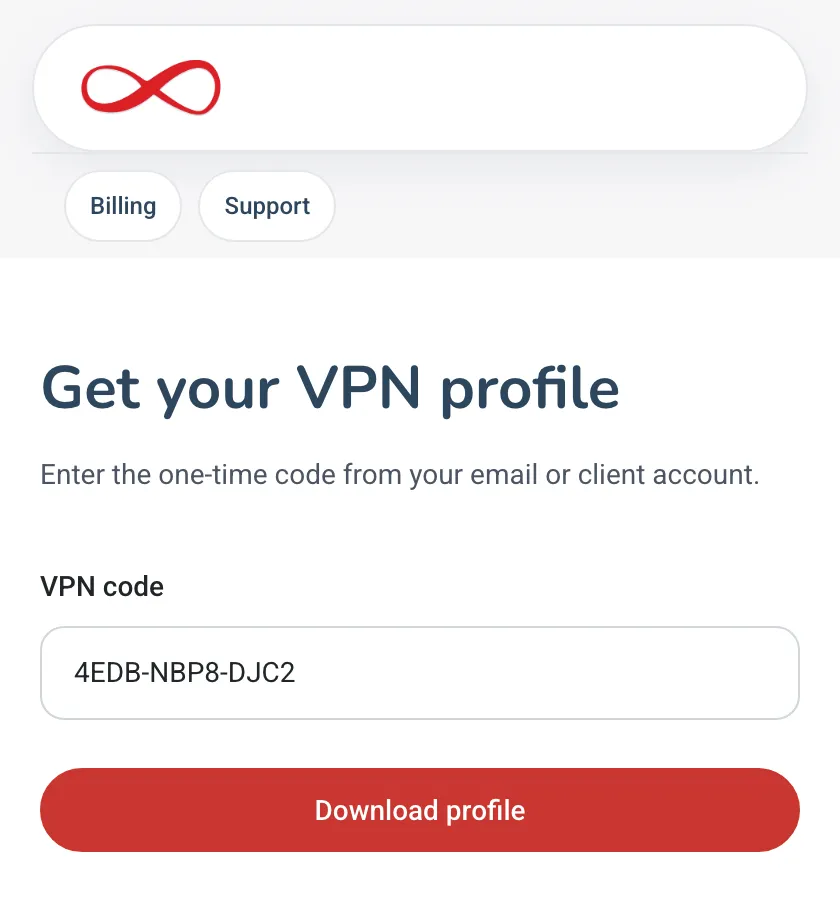
  • Device access code: select Send profile, then Get code. On a browser on Android TV, open dash.teklanvpn.com/get, enter the code and download the profile. The code expires after 15 minutes and works once.
  • If none of those routes can save the file on Android TV, download it on a trusted computer and transfer it to storage that the TV file picker can read.
Send VPN profile window in the Dashboard: Send email, and a one-time device access code to enter at dash.teklanvpn.com/get
In the Dashboard: Send profile, then Get code.
Get your VPN profile page at dash.teklanvpn.com/get with the code typed in and a Download profile button
On the TV: enter the code at dash.teklanvpn.com/get.

Steps

Create the profile

  1. On your phone or computer, sign in to the client area, open your active VPN service and select Manage VPN Dashboard.
  2. Select Add device, name it (for example Living room TV), choose WireGuard on the Location step and create the profile.
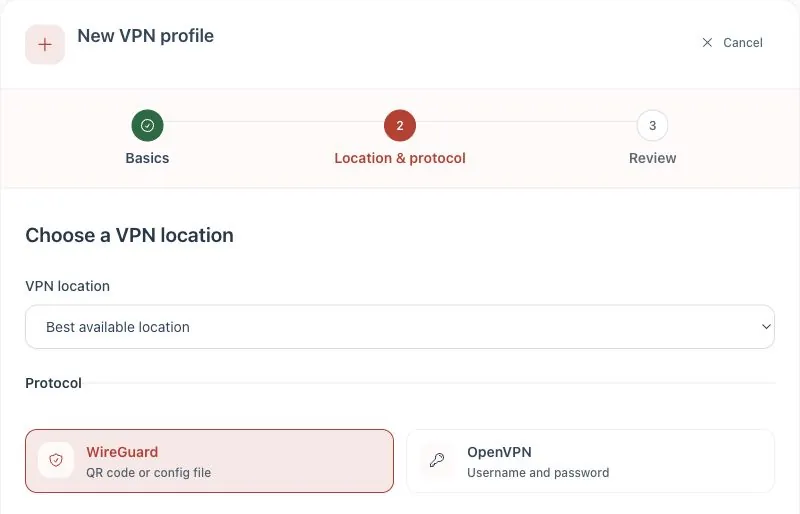
    New VPN profile, Location step: a VPN location menu and WireGuard selected as the protocol
    Choose WireGuard.
  3. When the profile shows Ready, select Set up this device, choose Android / Google TV and use one of the routes above to get the file onto the TV.

Import and connect

  1. Open WireGuard on Android TV and select the add button.
  2. Choose Import from file or archive.
  3. Select the downloaded .conf file and save the tunnel.
  4. Turn the tunnel on and approve the Android TV VPN permission request.
  5. Confirm WireGuard shows an active tunnel and test the public IP address in a browser where available.

If it does not connect

  • Make sure the file was generated for this device and is not active on another device.
  • Import a newly generated profile if the code expired or the saved profile was replaced.
  • Check the WireGuard log for the first error and confirm the device date and time are correct.

Still stuck? See the help articles, or open a support ticket with the exact error you see.
Features

What TekLan VPN for Android TV does

The Android app, made for the remote: sign in with your phone and connect in a couple of clicks.

  • WireGuard and OpenVPN

    Both protocols are built in, so there is no profile to import.

  • Locations worldwide

    Choose a city from our worldwide network. Each location shows its city first, then its country.

  • Sign in with your phone

    Scan a QR code or enter a code at teklanvpn.com/tv, with no typing on the TV.

  • Live connection details

    Data received and sent, connection time and your protected IP, updated while you are connected.

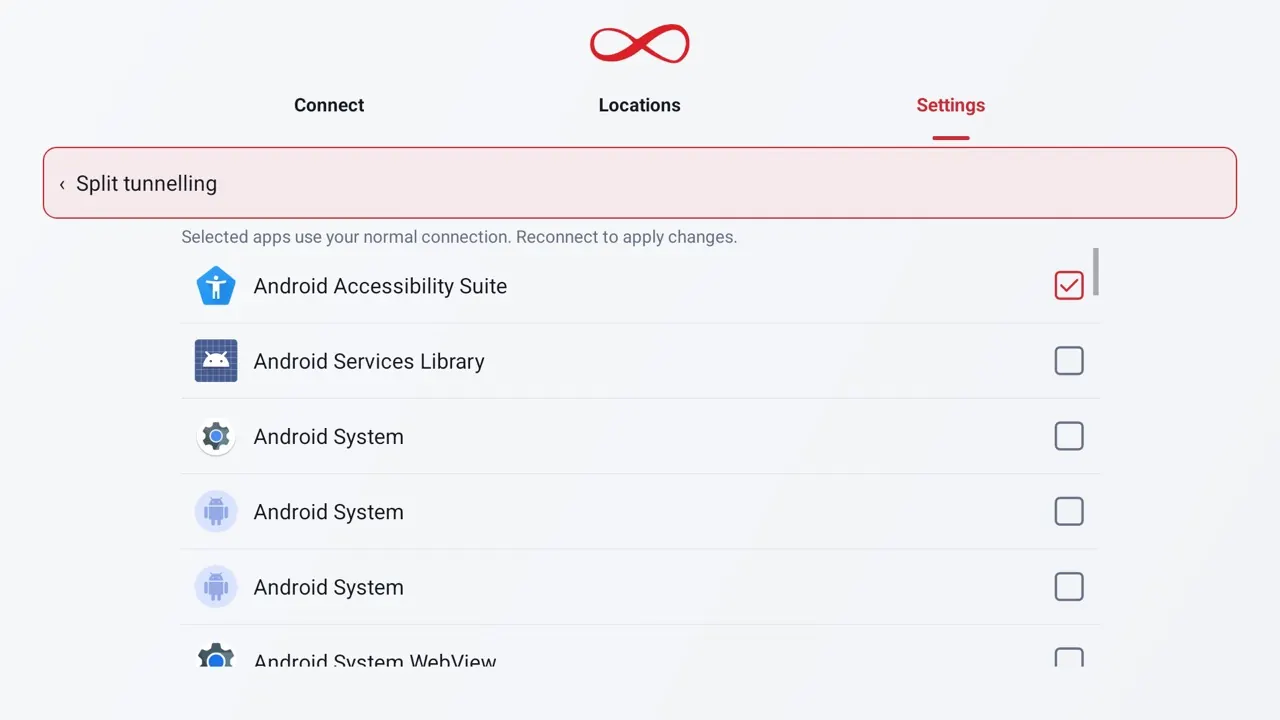
  • Per-app split tunnelling

    Choose apps that skip the VPN while everything else stays protected.

  • Bypass

    Leave chosen websites, IP addresses or ranges outside the VPN, for a bank or service that blocks VPNs. Up to 50 entries.

  • DNS choice

    Use TekLan DNS, pick another well-known DNS provider, or enter your own.

  • Leak test

    Check that your IP address and DNS requests stay inside the VPN.

  • Dedicated IP

    If you have a private server or dedicated IP, it is listed first under “Your private servers”, with its IP address.

  • Local network access

    Keep printers, casting and other devices on your home network reachable while connected.

  • Your language

    English, German, Spanish and French, following your device’s language.

Screenshots

See the app

Requirements

What you need

  • An Android TV or Google TV device with Google Play, or the Downloader app.
  • A TekLan VPN plan.
  • Your phone nearby to sign in with a code.
Questions

Frequently asked

Is this the same app as on my phone?

Yes. It is the same Android app, with screens made for the remote, so it updates with the phone app.

Do I need a separate subscription for each app?

No. One TekLan VPN plan covers every app; each device uses one of your plan’s connections while it is connected.

Where are the servers?

Worldwide. The app lists every location your plan includes, and you can switch whenever you like.