Install from Google Play
Current version: 4.5.0 · What the app does
Before you begin
- Connect this Android phone to the internet.
- Have your TekLan VPN email address and password ready.
- Allow app installation and approve the system VPN request when prompted.
Steps
-
Open Google Play on your Android phone, search for TekLan VPN and tap Install. On this phone, you can use the Google Play button below.
-
Open TekLan VPN and sign in with your TekLan VPN email address and password.
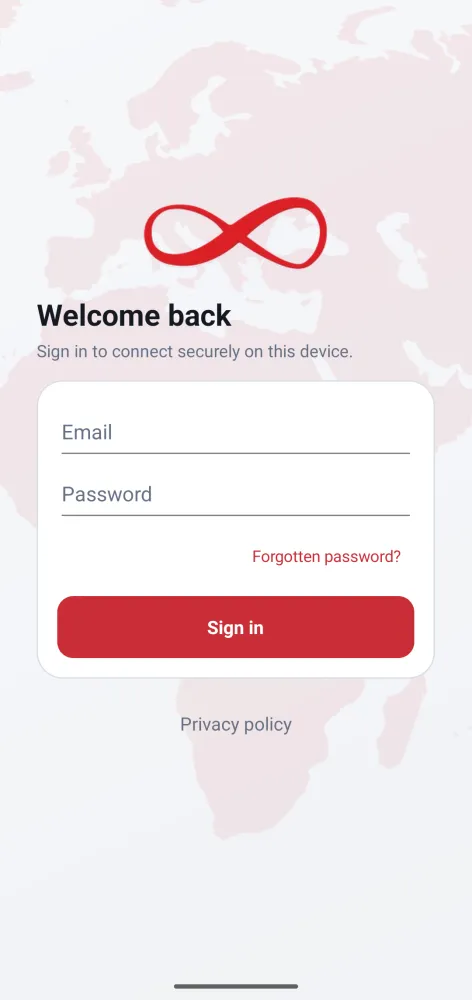
Sign in with your TekLan VPN account. -
Tap Locations and choose where you want to appear to be. Search by city or country, or tap the star to keep a favourite at the top.
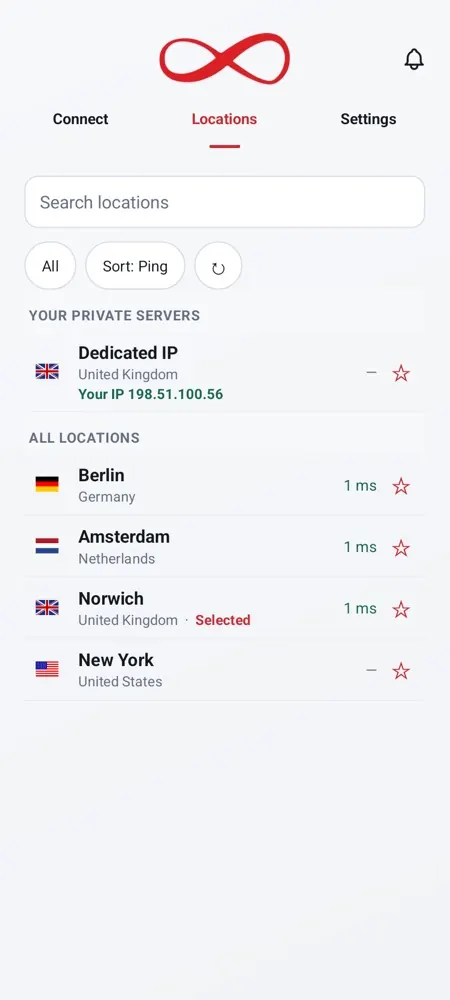
Pick a location from the list. -
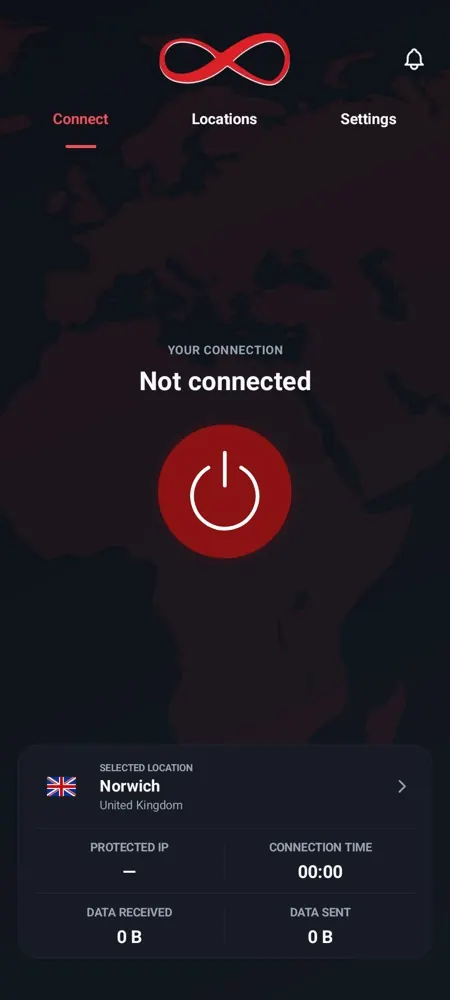
Go back to Connect and tap the power button. The first time, Android asks to set up a VPN connection: tap OK.
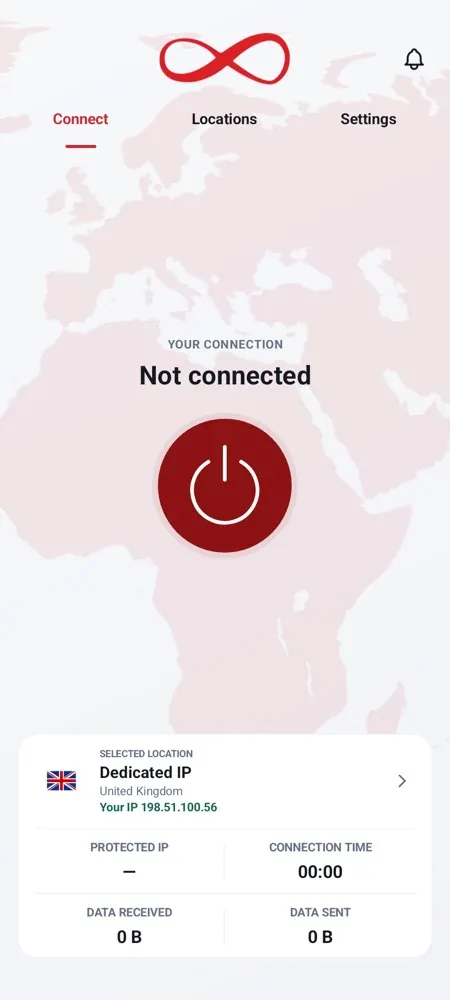
Tap the power button to connect.
Google Play and the Google Play logo are trademarks of Google LLC.

Check the connection
- Confirm the TekLan VPN app reports Connected.
- Check that the system VPN indicator remains visible where supported.
- Open a browser and confirm the public IP address changes.
- Disconnect in the app and confirm normal internet access returns.
If it does not connect
- Confirm this device has internet access before starting the VPN.
- Disconnect any other VPN application.
- Approve the system VPN request if it appears again.
- Sign out, restart the app and sign in again.
Still stuck? See the help articles, or open a support ticket with the exact error you see.