Install the TekLan VPN app from Google Play or use the direct APK on a supported Android-based television device.
TekLan app for Nvidia Shield
Install TekLan VPN on Nvidia Shield
This guide covers Nvidia Shield only. Use its Google Play listing first, with the direct APK as the fallback.
Before you begin
Connect Nvidia Shield to the internet.
Have your TekLan VPN client-account email address and password ready.
Allow app installation and the system VPN connection request when prompted.
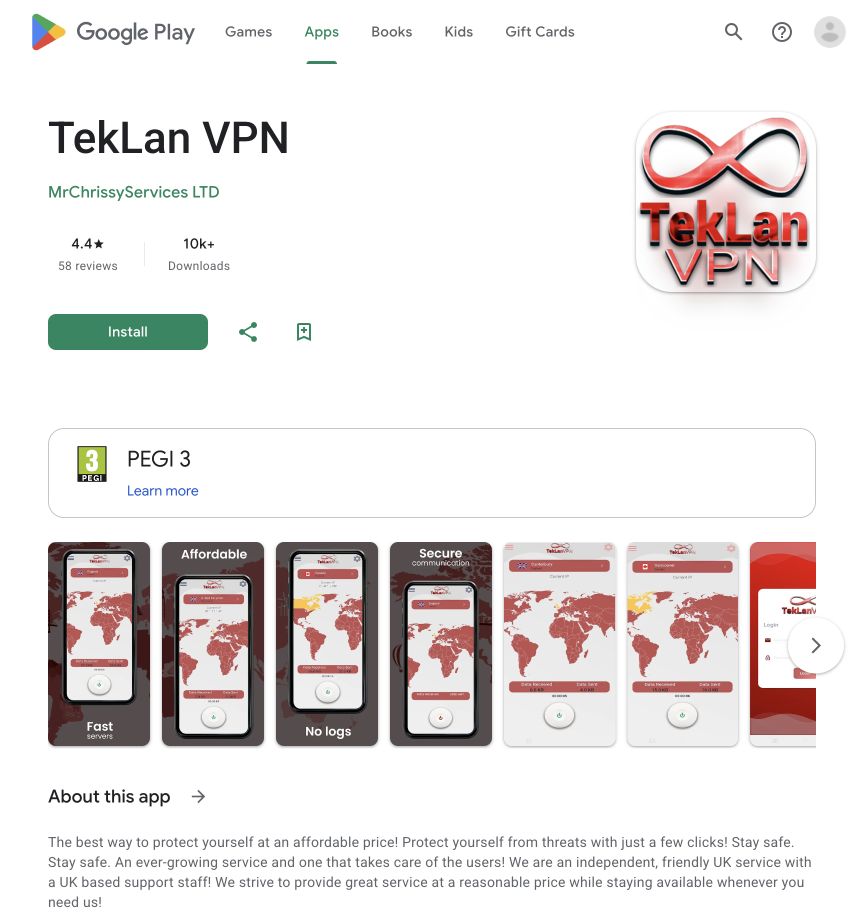
1. Find the official TekLan VPN app on Google Play.2. Open TekLan VPN and sign in with your client account.
Complete the setup
Open Google Play on the Nvidia Shield and search for TekLan VPN.
Install and open the app, then sign in using your registered email address and password.
Select a server and choose Connect.
Approve the Android VPN connection request when it appears.
If Google Play does not offer the app on the Nvidia Shield, install Downloader and allow installation from that source.
In Downloader, enter teklanvpn.com/latest.apk or code 5937995, then install and open TekLan VPN. The current APK is version 4.0.2.
Check the connection
Confirm the TekLan VPN app reports Connected.
Check that the system VPN indicator remains visible where Nvidia Shield displays one.
Open a browser or IP-checking application and confirm the public IP address changes.
Disconnect in the TekLan app and confirm normal internet access returns.
If it does not connect
Confirm Nvidia Shield has internet access before starting the VPN.
Disconnect any other VPN application.
Approve the system VPN connection request if it appears again.
If using the APK route, remove incomplete downloads and download a fresh copy from the TekLan address shown above.
Manual alternative
Set up WireGuard on Nvidia Shield
Use this when you want a Dashboard-generated WireGuard profile instead of signing in to the TekLan VPN app.
Before you begin
Install WireGuard from Google Play on Nvidia Shield.
Create a separate WireGuard profile for this device in the TekLan VPN Dashboard.
Move the profile to Nvidia Shield
Download profile: download the .conf file using a browser or file manager available on Nvidia Shield.
Email: select Send profile, choose Email and select Queue email. Open the attached .conf file on Nvidia Shield.
Device access code: select Send profile, then Get code. On a browser on Nvidia Shield, open dash.teklanvpn.com/get, enter the code and download the profile. The code expires after 15 minutes and works once.
If none of those routes can save the file on Nvidia Shield, download it on a trusted computer and transfer it to storage that the TV file picker can read.
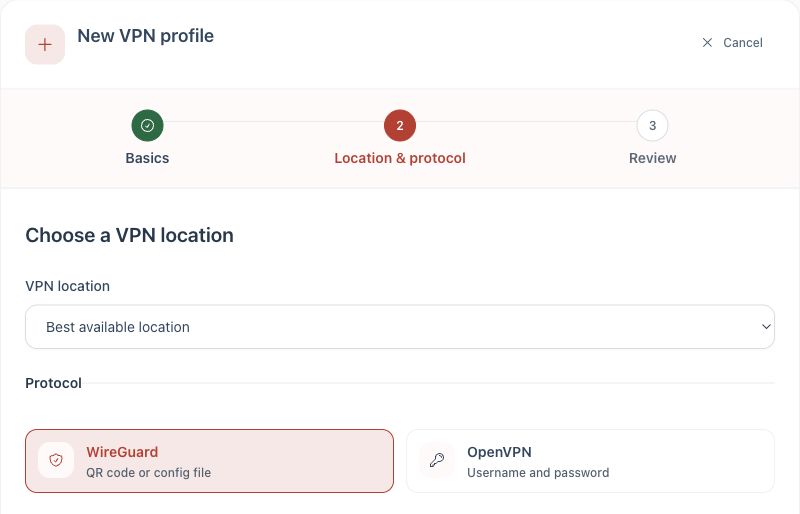
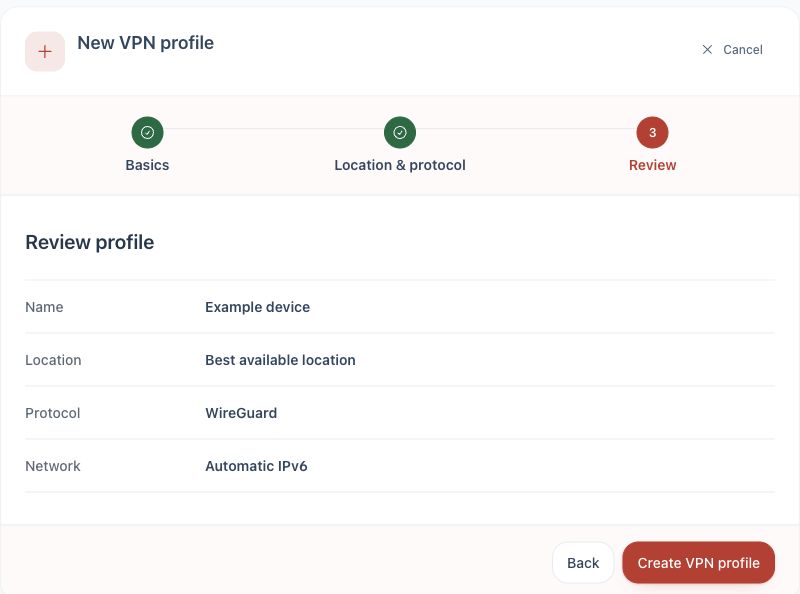
1. Choose WireGuard.2. Review and create the profile.
Import and connect
Open WireGuard on Nvidia Shield and select the add button.
Choose Import from file or archive.
Select the downloaded .conf file and save the tunnel.
Turn the tunnel on and approve the Android TV VPN permission request.
Confirm WireGuard shows an active tunnel and test the public IP address in a browser where available.
If it does not connect
Make sure the file was generated for this device and is not active on another device.
Import a newly generated profile if the code expired or the saved profile was replaced.
Check the WireGuard log for the first error and confirm the device date and time are correct.