Use LibreELEC's built-in WireGuard support with a converted profile, or choose a VPN router for the simpler route.
Advanced direct setup
Convert a WireGuard profile for LibreELEC
LibreELEC includes a WireGuard client, but it cannot import the standard .conf file directly. ConnMan requires a different .config format, so the values must be transferred carefully.
Before you begin
Update LibreELEC and enable SSH in the LibreELEC settings add-on.
Create a separate WireGuard profile for this LibreELEC device.
Keep local access to the device while testing. A routing mistake can interrupt network access.
Get the Dashboard profile
Download profile: save the WireGuard .conf file on the computer used to administer LibreELEC.
Email: select Send profile, choose Email and select Queue email.
Device access code: select Send profile, then Get code. Open dash.teklanvpn.com/get, enter the code and download the profile. The code expires after 15 minutes and works once.
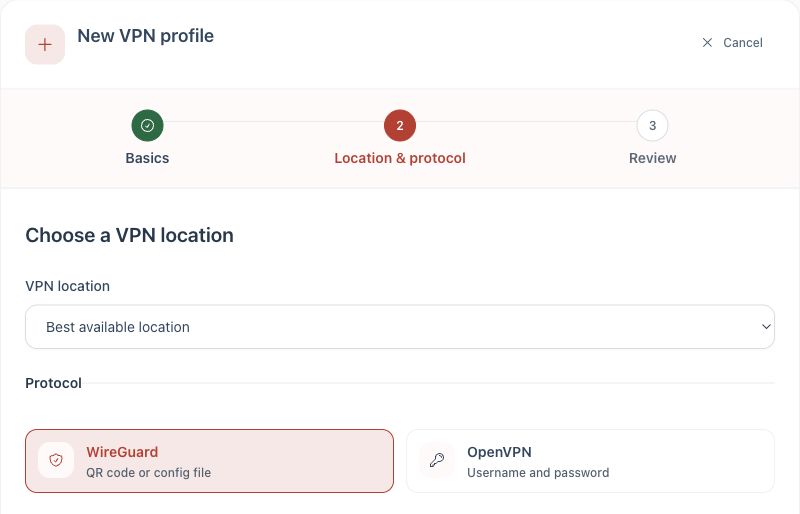
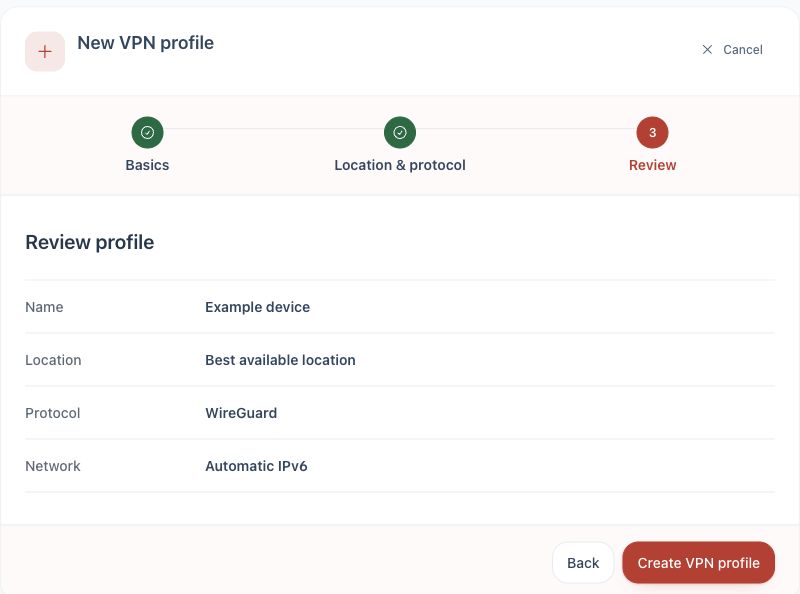
1. Create a WireGuard profile for LibreELEC.2. Download the profile, then convert its values.
Create the LibreELEC configuration
Open the downloaded .conf file in a text editor. Do not upload it to a conversion website.
Connect to LibreELEC over SSH and create /storage/.config/wireguard/teklan.config.
Follow the official LibreELEC WireGuard field mapping. Transfer the interface address, private key, DNS, peer public key, preshared key where present, endpoint port and allowed IPs.
For Host, use the endpoint IP address. LibreELEC ConnMan does not accept a hostname in this field.
Remove any optional field that is absent from the Dashboard profile rather than leaving it blank.
Save the file, then run connmanctl services and identify the new VPN service.
Run connmanctl connect SERVICE_NAME, replacing SERVICE_NAME with the service shown by ConnMan.
Check the connection
Run connmanctl services again and confirm the VPN service is connected.
Open Kodi and test network access.
Check the public IP address from a browser or another device temporarily assigned to the same route.
If it does not connect
Recheck every value copied from the Dashboard file, especially the endpoint port and key fields.
Confirm Host contains an IP address rather than a hostname.
If the direct conversion is unsuitable, use the compatible-router guide and assign the LibreELEC device to the router VPN policy.
Do not reuse the same WireGuard profile on another connected device.
Protect the configuration: both files contain the private key for this device. Delete unnecessary copies after setup.