Use the Synology DSM VPN connection route provided by the TekLan VPN Dashboard.
Dashboard-supported Synology setup
Import OpenVPN into Synology DSM
The Dashboard currently presents a Synology NAS route using DSM VPN connection.
Before you begin
Sign in to Synology DSM with permission to change network interfaces.
Confirm the NAS has working internet access.
Keep the TekLan VPN Dashboard open in a separate browser tab.
Move the OpenVPN profile to the target device
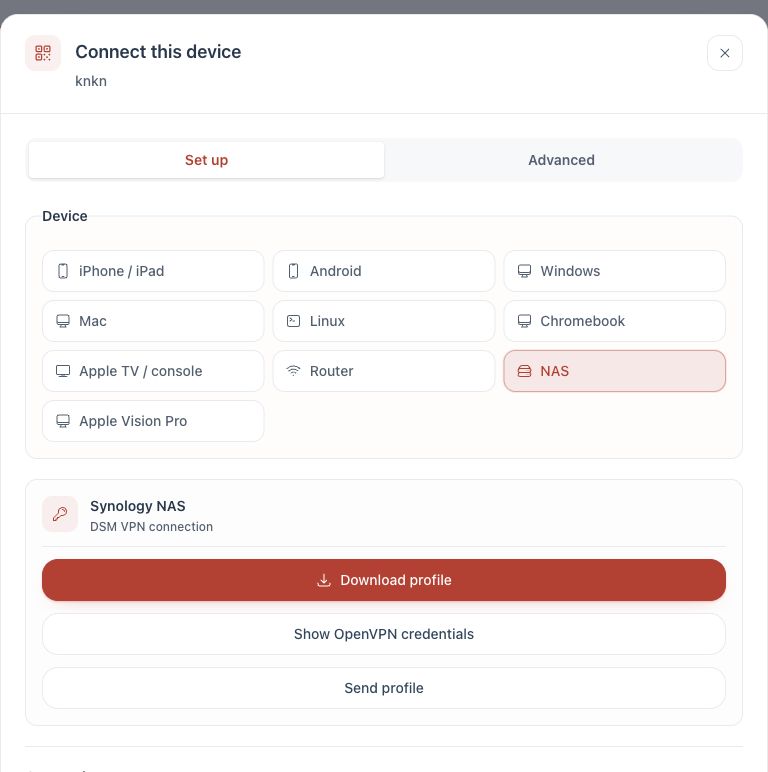
Download profile: save the .ovpn file directly.
Email: select Send profile, choose Email and select Queue email. The .ovpn file is attached to the message sent to your account email address.
Credentials: select Show OpenVPN credentials. Keep the displayed profile username and password available. The password unlocks the private key and is not your TekLan VPN password.
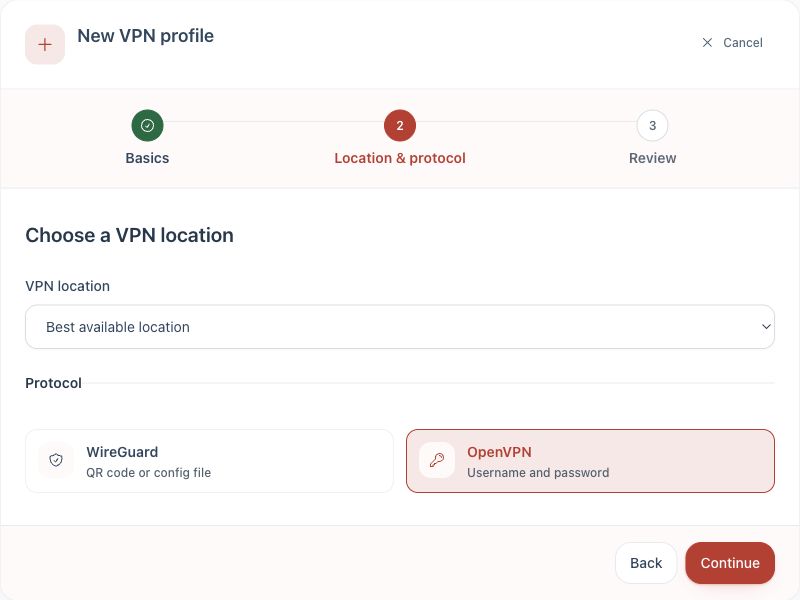
1. Create an OpenVPN profile.2. Choose NAS for the Synology DSM route.
Complete the setup
Create an OpenVPN profile in the Dashboard.
Select Connect device and choose NAS.
Use Show OpenVPN credentials, then download the .ovpn file.
Sign in to DSM and open Control Panel, Network, Network Interface.
Choose Create, Create VPN Profile, then OpenVPN via importing a .ovpn file.
Import the file and enter the OpenVPN profile username and password shown by the Dashboard when DSM asks for account authentication. These are not your DSM or TekLan VPN sign-in details.
Select the new VPN interface and choose Connect.
Confirm DSM reports the interface as connected and test outbound access from the NAS.
Check the connection
Confirm DSM reports the imported VPN interface as Connected.
Check that the NAS still has outbound internet access.
Confirm local DSM access still works before closing the administration page.
If it does not connect
Recheck the imported profile and the private-key password shown in the Dashboard.
Confirm the NAS date, time and DNS settings are correct.
Disconnect an older VPN interface before testing the new profile.
If remote access stops working, disconnect the VPN interface and review DSM routing settings.