Import an OpenVPN profile into QVPN Service so the NAS itself connects through TekLan VPN.
OpenVPN in QVPN Service
Import the profile directly on QNAP NAS
QVPN Service can import an OpenVPN configuration, so a separate VPN router is not required for this setup.
Before you begin
Update QTS or QuTS hero and install QVPN Service from App Center.
Sign in with an administrator account that can change network settings.
Confirm the NAS has internet access and record how you normally reach its administration page.
Get the OpenVPN profile
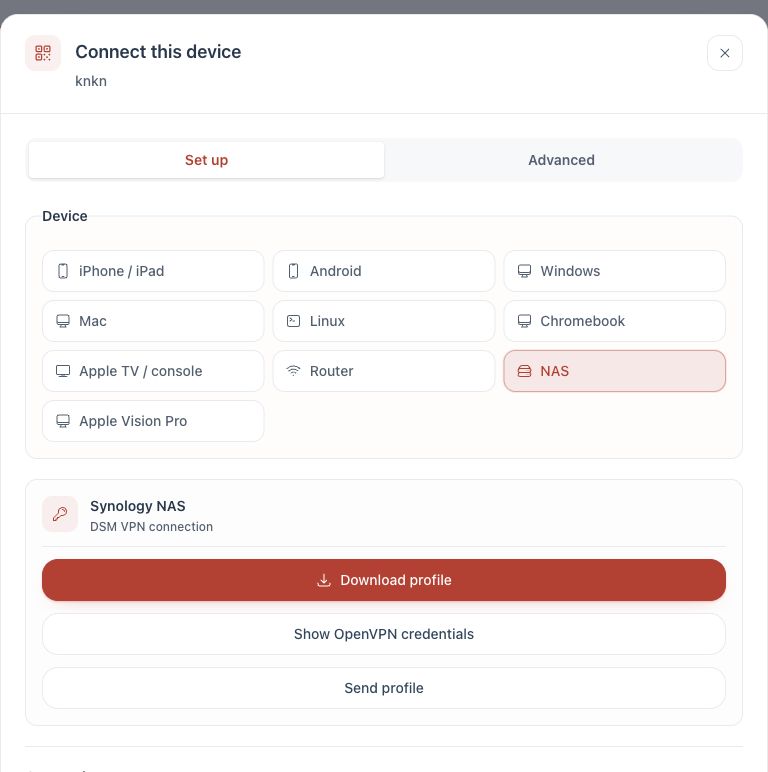
Download profile: create an OpenVPN profile in the TekLan VPN Dashboard and save the .ovpn file.
Email: select Send profile, choose Email and select Queue email. Save the attached .ovpn file from your account email.
Credentials: select Show OpenVPN credentials. Keep the displayed profile username and password available. The password unlocks the private key and is not your TekLan VPN password.
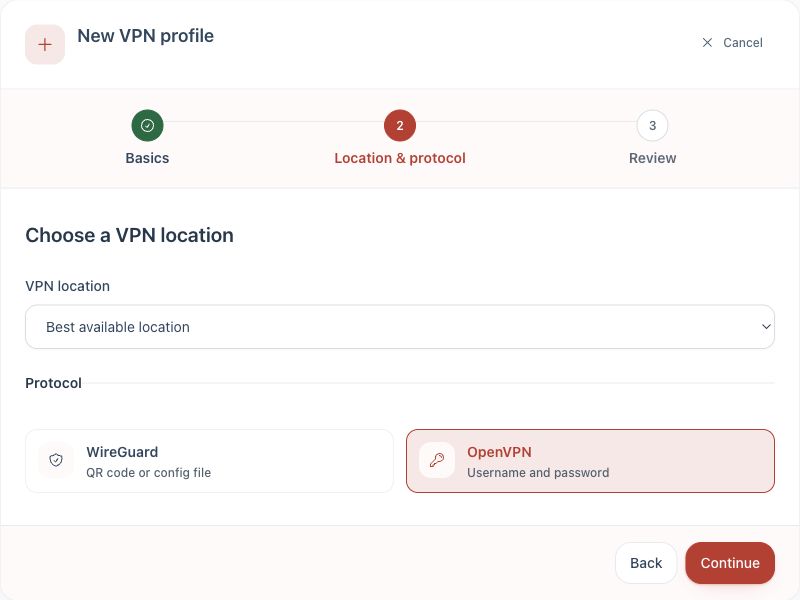
1. Create an OpenVPN profile for the QNAP NAS.2. Choose NAS, then download or send the profile.
Import and connect
Open QVPN Service on the NAS.
Open VPN Client, then VPN Connection Profiles.
Choose Add, then OpenVPN.
Import the TekLan .ovpn file and give the connection a recognisable name.
When QVPN requests credentials, use the OpenVPN profile username and password shown by the Dashboard, not your QTS or TekLan VPN password.
Choose whether this profile should be the NAS default gateway only after considering remote administration, applications and container networking.
Save the profile and select Connect.
Check the connection
Confirm QVPN Service reports the profile as connected.
Test outbound access from an application on the NAS.
Confirm the QTS or QuTS hero administration page is still reachable from your local network.
If it does not connect
If QVPN rejects the profile, download a newly generated .ovpn file and retry before editing it.
If it reports a key or certificate-password error, re-enter the OpenVPN password shown by the Dashboard.
If remote access stops after making the VPN the default gateway, disconnect the profile locally and review the gateway and service-binding settings.
Older QVPN releases may label the same controls differently. Update QVPN Service before assuming the profile is incompatible.
Plan the route first: making the VPN the NAS default gateway can affect remote access, containers and services bound to a specific interface.