Use the Linux WireGuard or OpenVPN 3 route that matches your Raspberry Pi operating system.
WireGuard on Raspberry Pi OS
Install with wg-quick
Use this method on Raspberry Pi OS and other Debian-based distributions. Give the Raspberry Pi its own Dashboard profile rather than reusing one from another device.
Before you begin
Update Raspberry Pi OS and make sure the Raspberry Pi has working internet access.
Have an account with sudo access.
Keep local or SSH access available while changing the network route.
Move the WireGuard profile to the Raspberry Pi
Download profile: save the .conf file directly.
Email: select Send profile, choose Email and select Queue email.
Device access code: select Send profile, then Get code. On the Raspberry Pi, open dash.teklanvpn.com/get, enter the code and download the profile. The code expires after 15 minutes and works once.
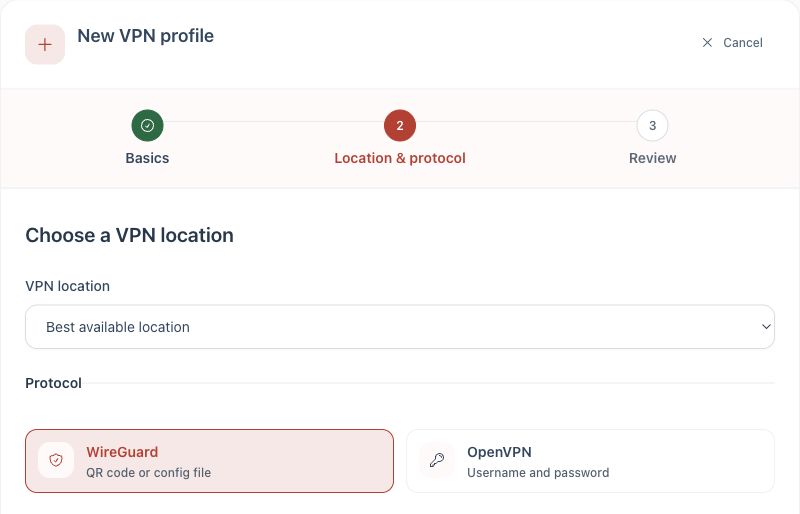
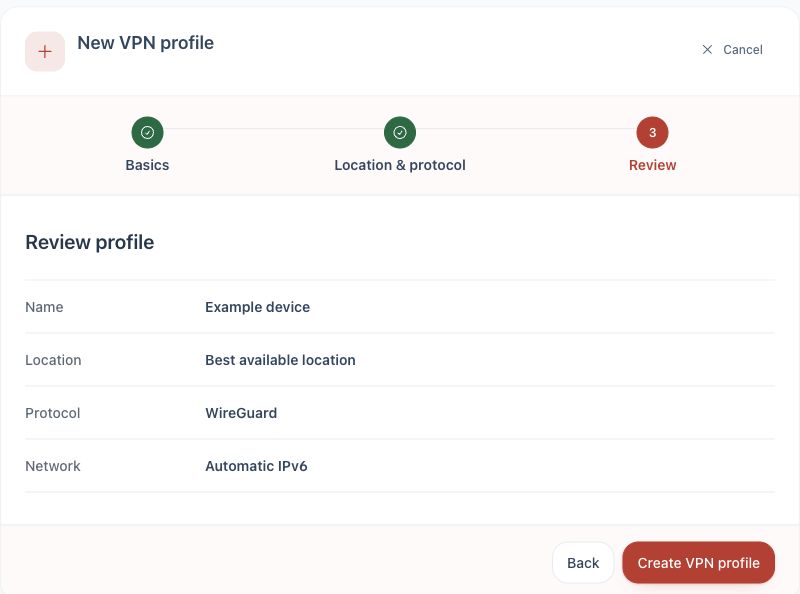
1. Create a WireGuard profile for this Raspberry Pi.2. Review, create and download the profile.
Install and connect
Run sudo apt update && sudo apt install wireguard.
Move the downloaded file to /etc/wireguard/teklan.conf.
Protect it with sudo chmod 600 /etc/wireguard/teklan.conf.
Start the tunnel with sudo wg-quick up teklan.
To start it automatically after boot, run sudo systemctl enable wg-quick@teklan.
Check the connection
Run sudo wg show and look for a recent handshake.
Run curl https://api.ipify.org and confirm the public IP address changed.
Test the service the Raspberry Pi is intended to run before enabling automatic startup.
If it does not connect
Run sudo wg-quick down teklan to restore the previous route.
Check the Raspberry Pi date and time and confirm UDP traffic is allowed by the local network.
Download a new profile if the Dashboard profile was replaced or revoked.
OpenVPN alternative
Use OpenVPN 3 Linux
Choose this when WireGuard is unsuitable and OpenVPN 3 Linux supports the installed distribution and CPU architecture.
Get the OpenVPN profile
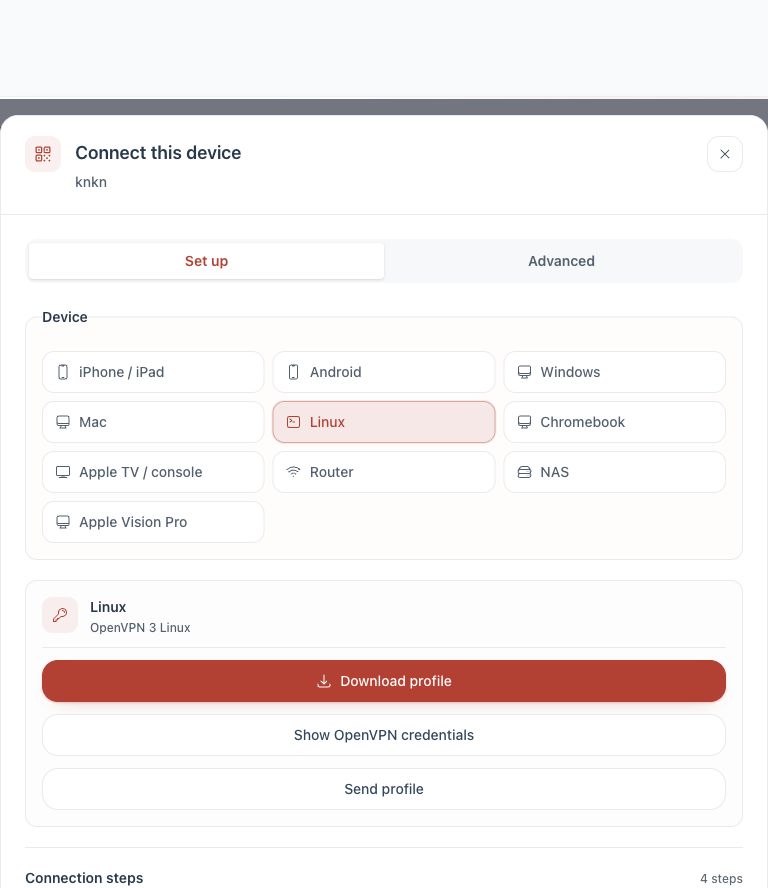
Download the .ovpn file directly or select Send profile, Email, then Queue email.
Select Show OpenVPN credentials. The displayed password unlocks the private key and is not your TekLan VPN password.
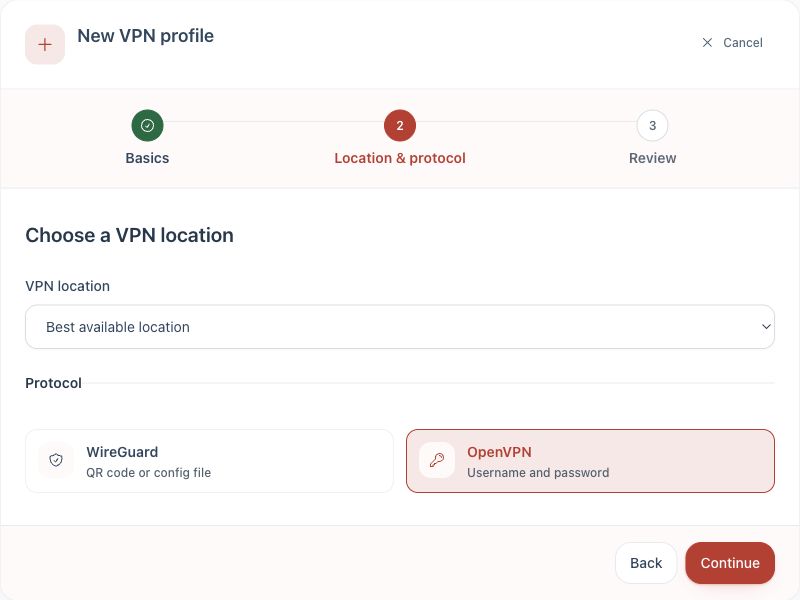
1. Create an OpenVPN profile.2. Choose Linux and obtain the profile and credentials.
Import and connect
Install OpenVPN 3 Linux using the official repository instructions for the installed distribution and architecture.
Import the profile with openvpn3 config-import --config /path/to/profile.ovpn --name TekLan --persistent.
Start it with openvpn3 session-start --config TekLan.
Enter the Dashboard OpenVPN password if asked for the private-key passphrase.
Run openvpn3 sessions-list to confirm the session is connected.
Do not lock yourself out: a full-tunnel profile can change how remotely administered services are reached. Test locally before enabling it at boot.