Import a WireGuard profile in SteamOS Desktop Mode, or use a compatible VPN router when you prefer not to change the Steam Deck network configuration.
Direct SteamOS setup
Import WireGuard in Desktop Mode
Steam Deck is a Linux PC. Use Desktop Mode to add a WireGuard connection directly to SteamOS, then return to Gaming Mode with the connection active.
Before you begin
Install current SteamOS updates.
Connect the Steam Deck to the internet.
Create a separate WireGuard profile for this Steam Deck in the TekLan VPN Dashboard.
Move the profile to Steam Deck
Download profile: save the .conf file directly in Desktop Mode.
Email: select Send profile, choose Email and select Queue email, then save the attached .conf file on Steam Deck.
Device access code: select Send profile, then Get code. In Desktop Mode, open dash.teklanvpn.com/get, enter the code and download the profile. The code expires after 15 minutes and works once.
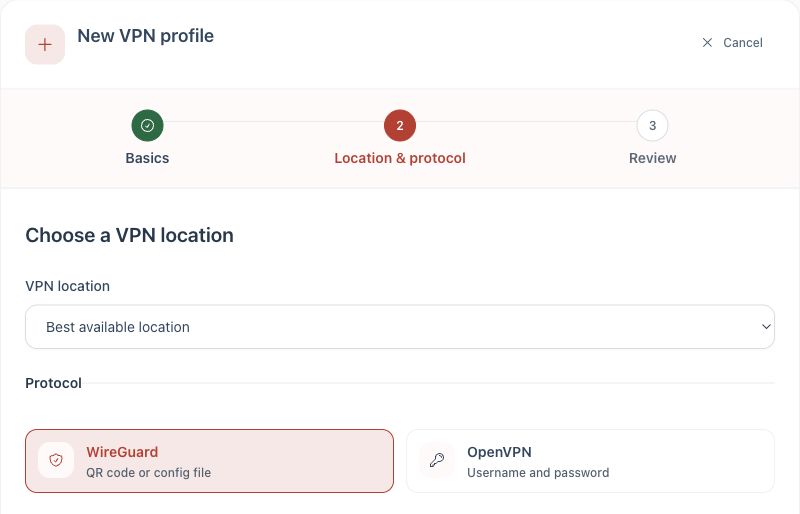
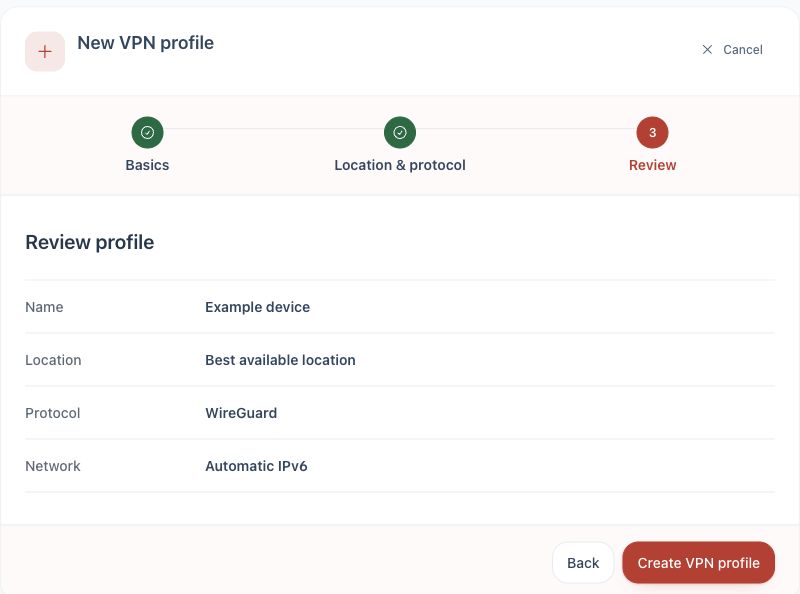
1. Create a WireGuard profile for Steam Deck.2. Review the profile and create it.
Import and connect
Press the Steam button, choose Power, then Switch to Desktop.
Download the .conf file using one of the methods above.
Open System Settings, then Connections.
Select the add button and use the option to import a VPN connection. Choose the downloaded WireGuard .conf file.
If the installed SteamOS network editor does not offer WireGuard file import, stop here and use the compatible-router guide. Do not enter private keys into an unverified conversion tool.
Select the network icon in the taskbar and activate the imported connection.
Use Return to Gaming Mode. Check that the connection remains active before starting a game.
Check the connection
In Desktop Mode, confirm the imported connection is active in the network menu.
Open a browser and confirm the public IP address changes.
Return to Gaming Mode and test the game or service you intend to use.
If it does not connect
Confirm that the SteamOS network editor identifies the file as a WireGuard connection.
Delete the failed connection and import a newly generated profile.
Some games use anti-cheat, regional or network controls that can reject VPN traffic even when the tunnel itself works.
If you do not want to maintain a SteamOS connection, use the compatible-router method in the router guide.
Keep the profile private: the .conf file contains connection credentials. Create a different profile for every device.