Install OpenVPN Connect from Google Play and import the Chromebook profile created in the Dashboard.
Dashboard-supported Chromebook setup
Use OpenVPN Connect on ChromeOS
The Dashboard provides a dedicated Chromebook route using OpenVPN Connect from Google Play.
Before you begin
Connect Chromebook to the internet.
Have your TekLan VPN client-account sign-in ready.
Allow installation of the required VPN application and permission to save a configuration file.
Move the OpenVPN profile to the target device
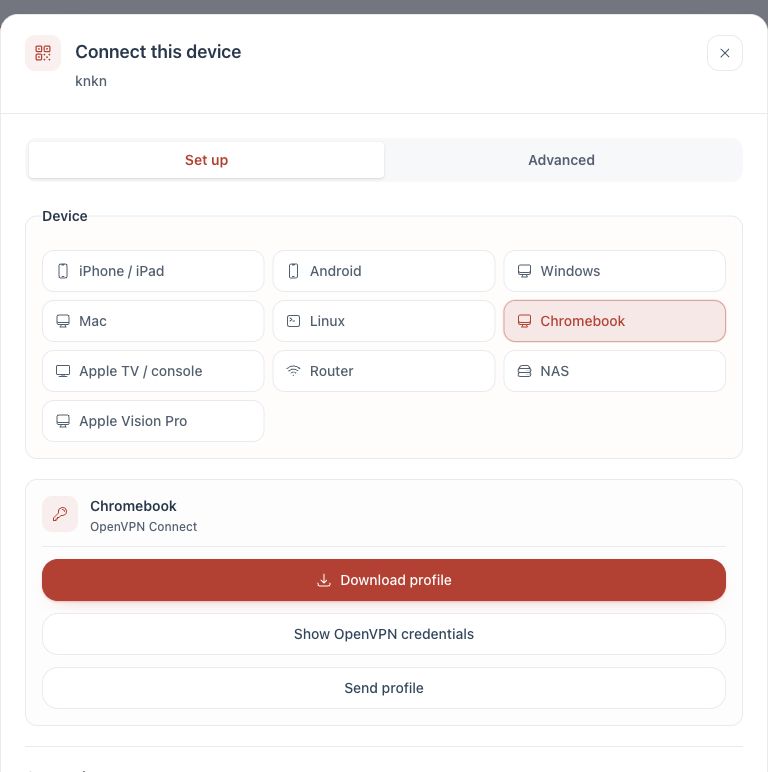
Download profile: save the .ovpn file directly.
Email: select Send profile, choose Email and select Queue email. The .ovpn file is attached to the message sent to the client-account email address.
Credentials: select Show OpenVPN credentials. Keep the displayed profile username and password available. The password unlocks the private key and is not the client-area password.
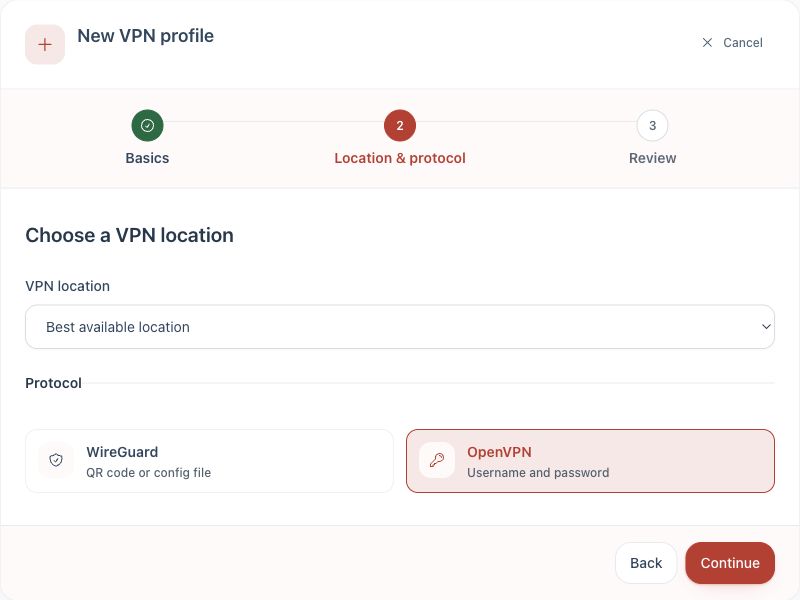
1. Create an OpenVPN profile.2. Choose Chromebook and download or send the profile.
Complete the setup
Open your VPN service in the client area and select Manage VPN Dashboard.
Create an OpenVPN profile for the Chromebook.
On the completed profile, select Connect device and choose Chromebook.
Install OpenVPN Connect from Google Play on the Chromebook.
Download the .ovpn file from the Dashboard on the Chromebook.
In OpenVPN Connect, go to Menu, My Profiles, add icon, Upload File and select the file.
Tap OK at the Import Profile confirmation.
If asked for the private-key password, enter the OpenVPN password shown for the profile.
Turn on the imported profile and approve the ChromeOS VPN permission.
Check the connection
Confirm the VPN application or tunnel reports Connected.
Check that the operating system VPN indicator appears where supported.
Confirm the public IP address changes using a browser or appropriate network check.
Disconnect the tunnel and confirm normal internet access returns.
If it does not connect
Disconnect any other VPN application or tunnel that could conflict with TekLan VPN.
Import a newly generated profile if the saved profile has been replaced or revoked.
Check the exact error shown by the VPN application before contacting support.
WireGuard alternative
Import WireGuard on Chromebook
The Dashboard also provides a WireGuard route for Chromebook.
Before you begin
Install WireGuard from Google Play.
Create a separate WireGuard profile for this device.
Move the WireGuard profile to the target device
Download profile: save the .conf file directly.
Email: select Send profile, choose Email and select Queue email. The .conf file is attached to the message sent to the client-account email address.
Device access code: select Send profile, then Get code. On the target device, open dash.teklanvpn.com/get, enter the code and select Download profile. The code expires after 15 minutes, works once and is replaced if another code is generated.
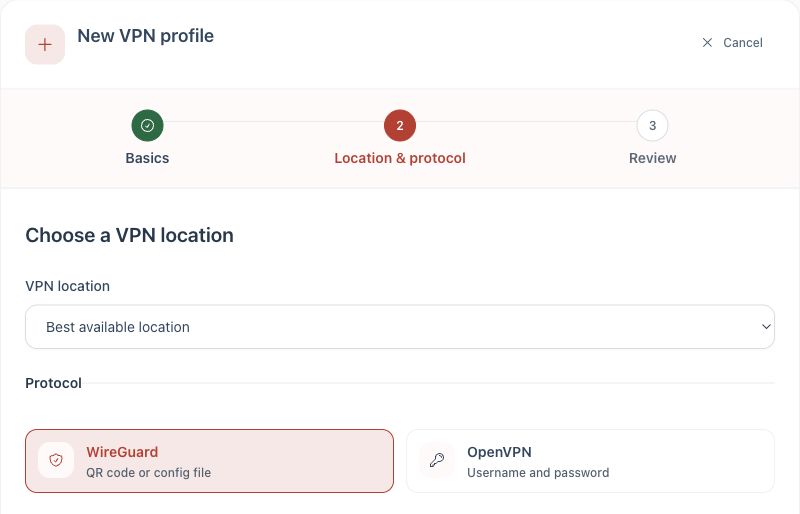
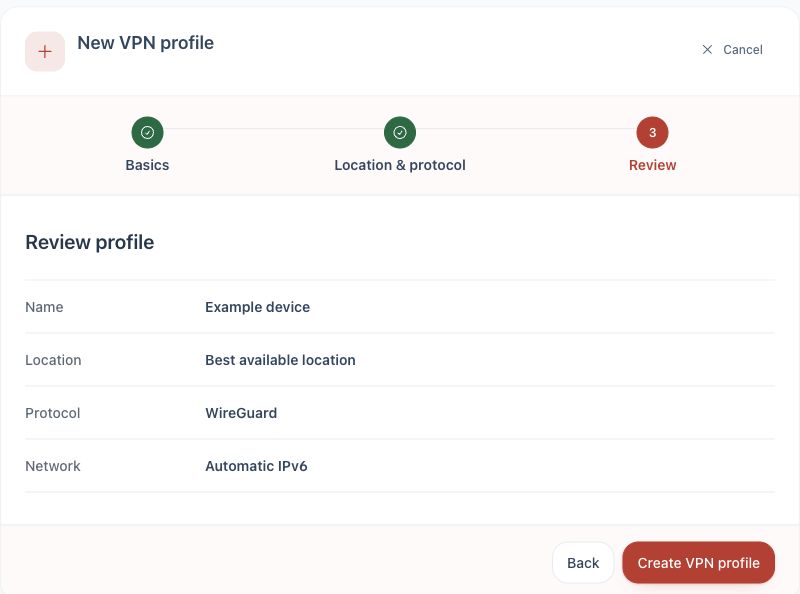
1. Choose WireGuard.2. Review and create the profile.
Import and connect
Obtain the .conf file using one of the delivery methods above.
Open WireGuard, tap the add button, choose Import from file or archive and select the .conf file.
Activate the tunnel and approve the operating-system VPN permission when prompted.
Confirm the tunnel reports an active connection and that the public IP address changes.