
Set up TekLan VPN on an Android tablet
Install the TekLan VPN app, or use a WireGuard or OpenVPN configuration created in the Dashboard.
This guide applies to tablets running Android. Settings and file-picker names can vary by manufacturer and Android version.
Install from Google Play
The current Google Play version is 4.0.2.
Before you begin
- Connect this Android tablet to the internet.
- Have your TekLan VPN email address and password ready.
- Allow app installation and approve the system VPN request when prompted.
Open the Google Play Store on your Android tablet and search for TekLan VPN. Use the Google Play button below if you are viewing this guide on the tablet.
Open TekLan VPN and sign in with your TekLan VPN email address and password. Open the server list, choose a server and select Connect. Approve Android’s VPN request the first time it appears.

Google Play and the Google Play logo are trademarks of Google LLC.
TekLan VPN for Android
Install from Google Play, sign in with your email address and password and connect directly in the TekLan VPN app.
Check the connection
- Confirm the TekLan VPN app reports Connected.
- Check that the system VPN indicator remains visible where supported.
- Open a browser and confirm the public IP address changes.
- Disconnect in the app and confirm normal internet access returns.
If it does not connect
- Confirm this Android tablet has internet access before starting the VPN.
- Disconnect any other VPN application.
- Approve the system VPN request if it appears again.
- Sign out, restart the app and sign in again.
Direct Download Installation
This method installs the published TekLan VPN Android APK directly from our website. The current direct-download APK is version 4.1.0.
Before you begin
- Connect this Android tablet to the internet.
- Have your TekLan VPN email address and password ready.
- Download the APK only from the TekLan address shown below.
- Open teklanvpn.com/latest.apk in the browser on this tablet and download the APK.
- Open the download. If Android blocks it, select Settings on the warning and allow this browser to Install unknown apps. The wording and menu location vary by manufacturer.
- Return to the download, select Install, then select Open when installation finishes.
- Open TekLan VPN, sign in with your email address and password, choose a server and select Connect. Approve Android’s VPN request when prompted.
- For better security, return to the browser’s Install unknown apps permission and switch Allow from this source off again.
Check the connection
- Confirm the TekLan VPN app reports Connected.
- Check that the system VPN indicator remains visible where supported.
- Open a browser and confirm the public IP address changes.
- Disconnect in the app and confirm normal internet access returns.
If it does not connect
- Confirm this Android tablet has internet access before starting the VPN.
- Disconnect any other VPN application.
- Approve the system VPN request if it appears again.
- Sign out, restart the app and sign in again.

Import a WireGuard tunnel
Use the QR code when the Dashboard is open on another screen. If the Dashboard is open on this Android tablet, download and import the .conf file instead.
Before you begin
- Install the official WireGuard app from Google Play.
- Make sure this Android tablet has a working internet connection.
- Open the TekLan VPN Dashboard on this device or another trusted screen.
Move the WireGuard profile to this device
After creating the profile, choose the delivery route that suits where the Dashboard is open.
- Download profile: save the
.conffile directly on this device. - Email: select Send profile, choose Email and select Queue email. The Dashboard sends the
.confattachment to your account email address. - Device access code: select Send profile, then Get code. On this device, open dash.teklanvpn.com/get, enter the code and select Download profile. The code expires after 15 minutes and works once. Generating another code replaces it.
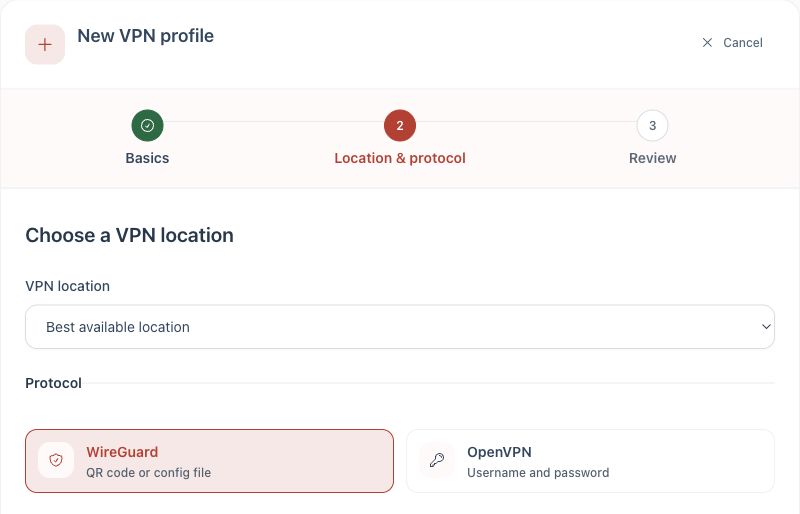
Create the profile
- Sign in to the client area with your email address and open your active VPN service.
- Select Manage VPN Dashboard.
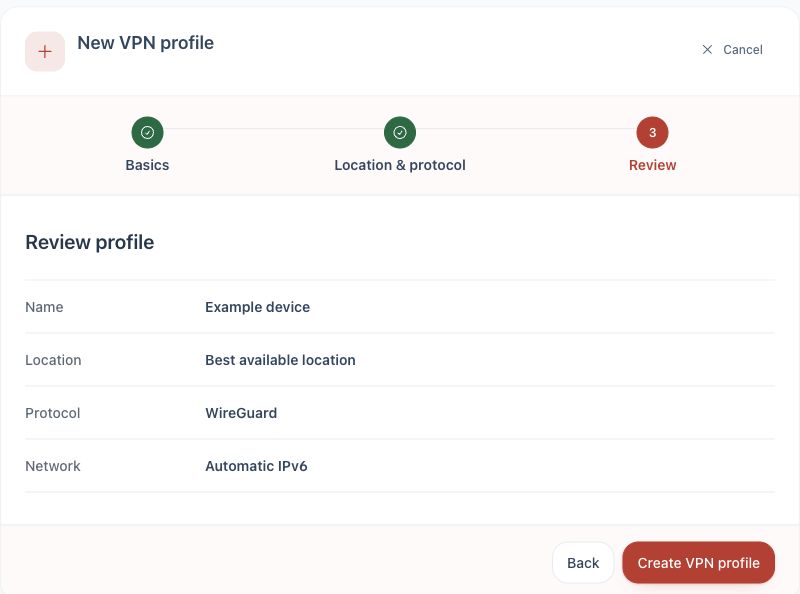
- Select Add device.
- Enter a name that identifies this Android tablet.
- Choose WireGuard, review the profile and create it.
Import with the QR code
Use this route only when the QR code is displayed on another screen.
- Leave the Dashboard QR code visible on the other screen.
- Open WireGuard on this Android tablet and tap the + button.
- Select Scan from QR code.
- Allow camera access if Android requests it, then scan the Dashboard QR code.
- Enter a recognisable tunnel name if WireGuard asks for one.
Import on the same device
- Download the
.conffile from the Dashboard. - Open WireGuard and tap the + button.
- Select Import from file or archive.
- Open the Downloads folder and select the TekLan
.conffile. - Confirm the import.
Connect
- Turn on the switch beside the imported tunnel.
- Approve the VPN connection request when Android displays it.
- Check that the tunnel remains active and the system VPN indicator appears.
Check the connection
- Confirm the imported WireGuard tunnel remains switched on.
- Check that the operating system VPN indicator appears where supported.
- Open a browser and confirm the public IP address changes.
- Switch the tunnel off and confirm normal internet access returns.
If it does not connect
- Disconnect any other active VPN application or tunnel.
- Delete the failed tunnel and import a newly generated
.conffile. - Confirm the system date and time are correct.
- Note the exact WireGuard error before contacting support.
Keep the profile private: the QR code and .conf file contain connection credentials. Do not share them.
OpenVPN Connect Setup
Follow these instructions to configure the OpenVPN Connect app on your Android tablet with your TekLan VPN service:
Before you begin
- Install OpenVPN Connect on Android tablet.
- Have your TekLan VPN email address and password ready.
- Allow the application to save and import an
.ovpnfile.
Move the OpenVPN profile to this device
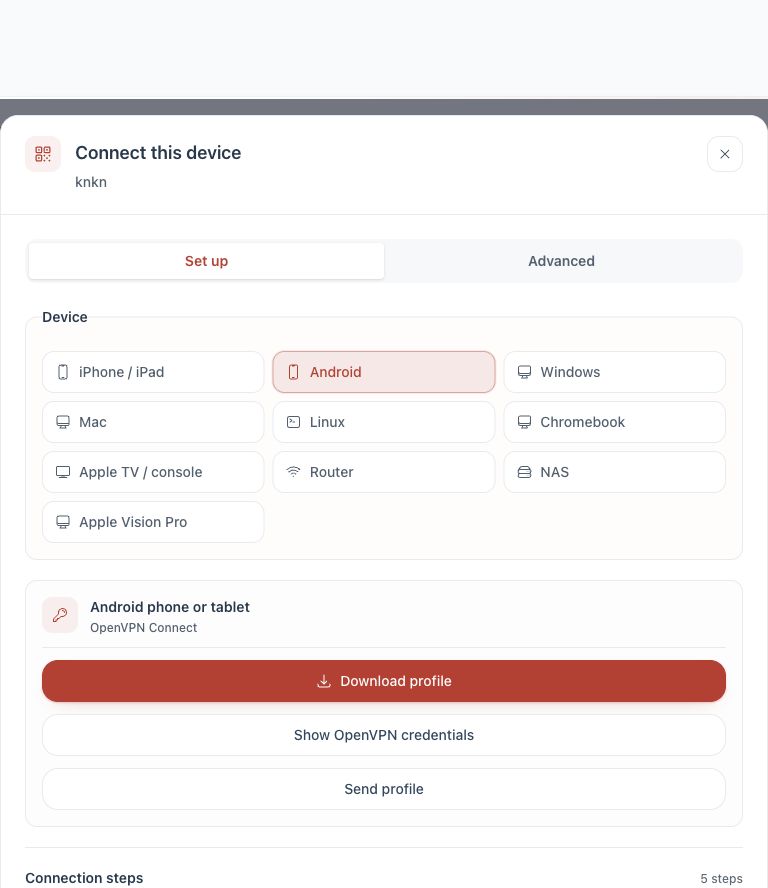
- Download profile: save the
.ovpnfile directly on this device. - Email: select Send profile, choose Email and select Queue email. The Dashboard sends the
.ovpnattachment to your account email address. - OpenVPN credentials: select Show OpenVPN credentials and keep the displayed profile username and password available. The password unlocks the private key inside the file. It is not your TekLan VPN password.
Device access codes are for WireGuard profiles only. OpenVPN uses the downloaded or emailed .ovpn file with the credentials shown in the Dashboard.
- Download and install the OpenVPN Connect app from Google Play.
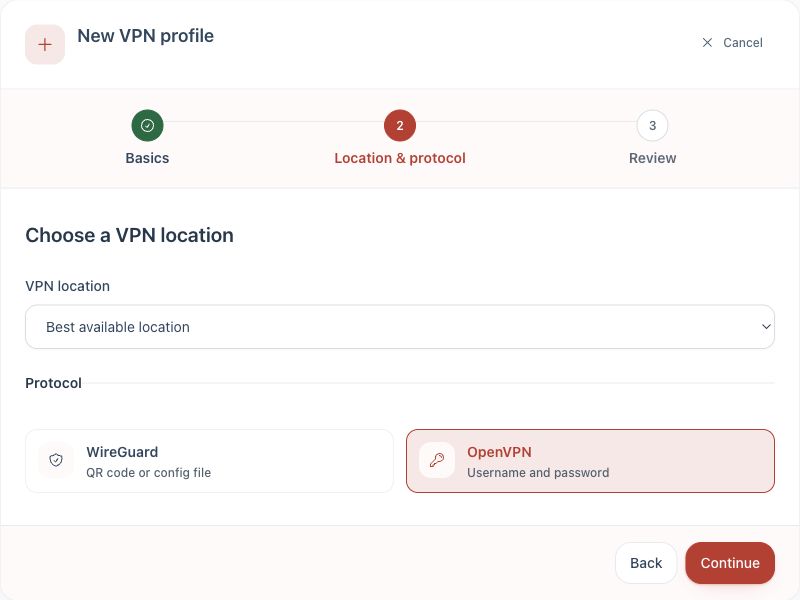
- In the client area, open your active VPN service, select Manage VPN Dashboard and create an OpenVPN profile.
- Select Connect device and choose Android tablet.
- Use Download profile or Send profile.
- In OpenVPN Connect, go to Menu → My Profiles → Add → Upload File and select the
.ovpnfile. - Confirm the import. If asked for the private-key password, use Show OpenVPN credentials.
- Turn on the imported profile and approve Android’s VPN permission.
Check the connection
- Confirm OpenVPN Connect reports the imported profile as Connected.
- Check that the operating system VPN indicator appears where supported.
- Open a browser and confirm the public IP address changes.
- Disconnect the profile and confirm normal internet access returns.
If it does not connect
- Use Show OpenVPN credentials in the Dashboard if the app requests the private-key password.
- Disconnect another active VPN before retrying.
- Delete the failed profile and import a newly downloaded
.ovpnfile. - Note the exact OpenVPN error before contacting support.