
Install the app directly
The direct download is the same TekLan VPN Android app as on Google Play. The current version is 4.6.0, and the app checks for updates itself.
Before you begin
- A Huawei phone or tablet with HarmonyOS 2 to 4 or EMUI, connected to the internet.
- Have your TekLan VPN email address and password ready. The direct download has no in-app subscription: if you are new to TekLan VPN, choose a plan on our website first.
- Download the APK only from the teklanvpn.com address shown below.
Steps
Download and install
-
On the Huawei device, open teklanvpn.com/latest.apk in the browser, or use the download button below.
-
Open the download. If the device blocks it, allow the browser to install apps from unknown sources when asked (on some versions, turn off Pure mode in Settings › System & updates first), then open the file again.
-
Select Install, then Open.
Sign in and connect
-
Sign in with your TekLan VPN email address and password.
-
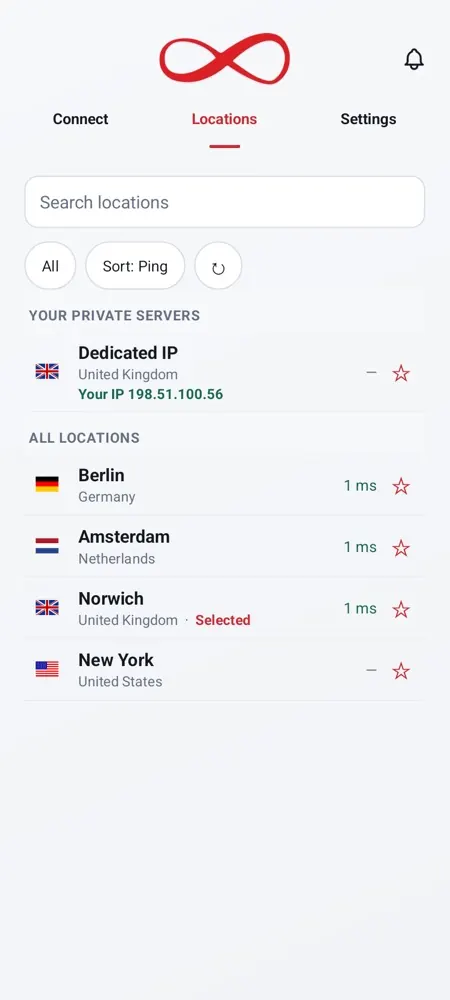
Tap Locations and choose where you want to appear to be.
-
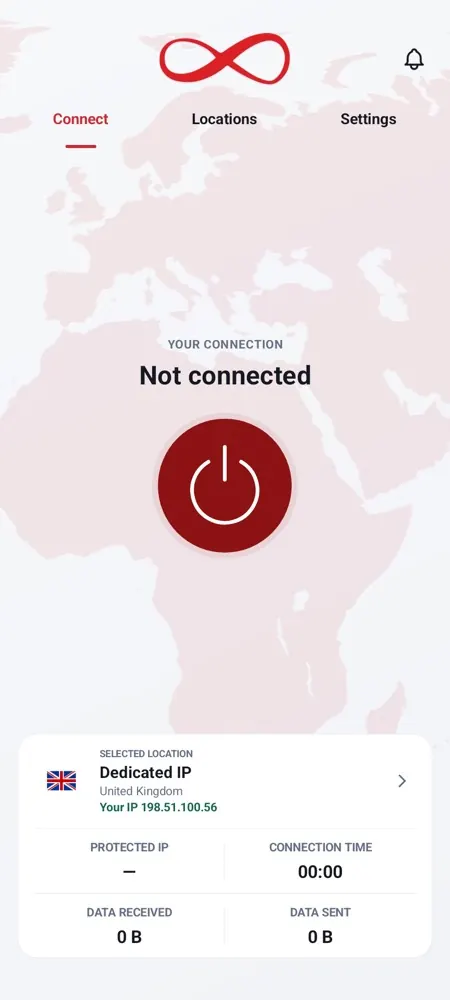
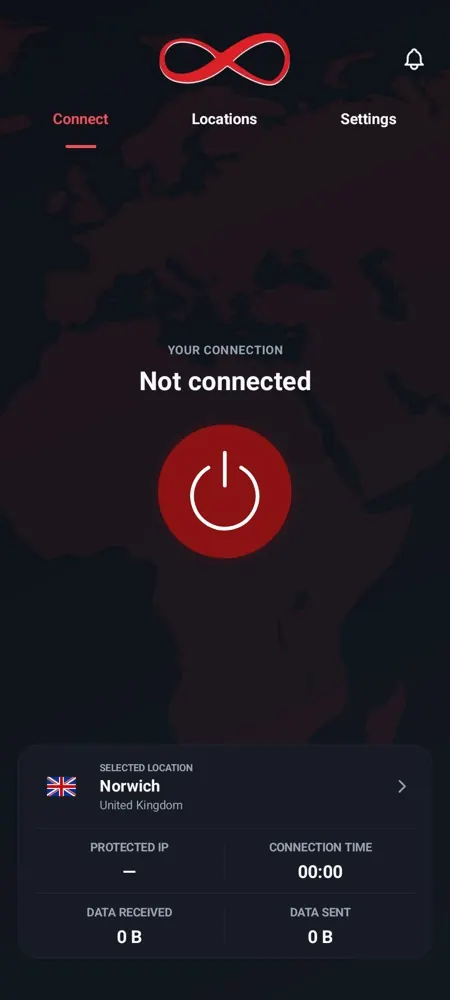
Go back to Connect and tap the power button. The first time, approve the VPN connection request with OK.
Check the connection
- Confirm the TekLan VPN app reports Connected.
- Check that the system VPN indicator remains visible where supported.
- Open a browser and confirm the public IP address changes.
- Disconnect in the app and confirm normal internet access returns.
If it does not connect
- Confirm this device has internet access before starting the VPN.
- Disconnect any other VPN application.
- Approve the system VPN request if it appears again.
- Sign out, restart the app and sign in again.
Still stuck? See the help articles, or open a support ticket with the exact error you see.