
Kodi host setup
Set up TekLan VPN for Kodi
Kodi does not control the VPN itself. Set up TekLan VPN on the device or operating system that runs Kodi.
Choose the Kodi host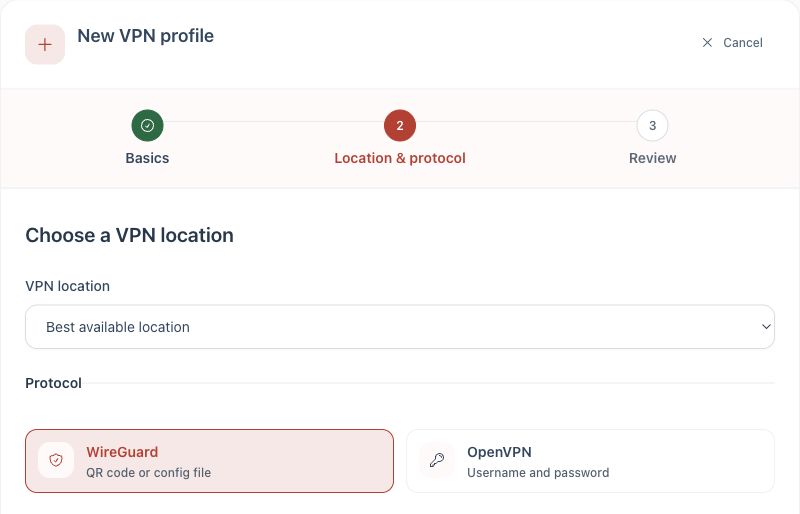
1. Create a separate profile for the device that runs Kodi. 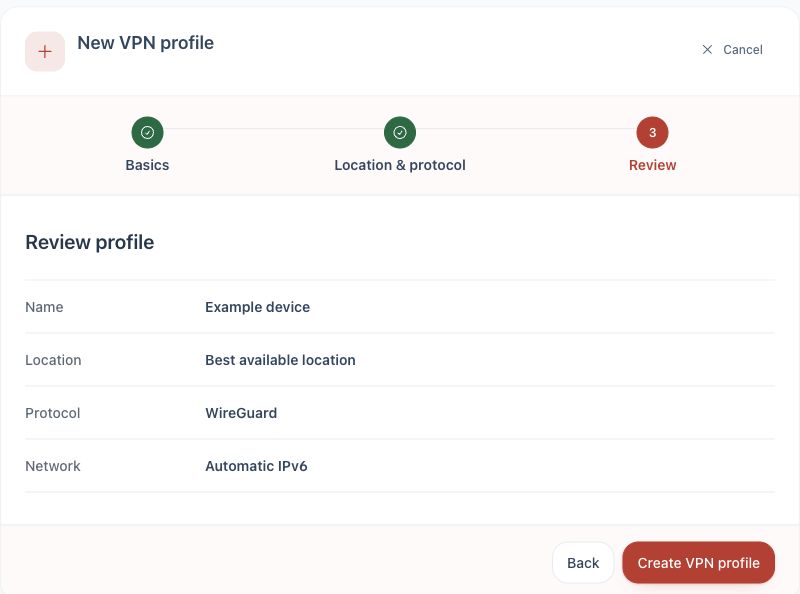
2. Import it using that device's guide.
Set up the device that runs Kodi
Kodi is an application, not a network platform. The useful setup route depends on whether Kodi runs on Android TV, Fire TV, Windows, Linux or LibreELEC.
Choose the correct guide
- Android TV, Google TV or Nvidia Shield: use the TekLan app or WireGuard instructions in the Android TV guide.
- Amazon Fire TV: install the TekLan app using the Fire TV guide.
- Windows: use the TekLan Windows app, WireGuard or OpenVPN in the Windows guide.
- Linux or Raspberry Pi OS: use the Linux guide or Raspberry Pi guide.
- LibreELEC: read the LibreELEC guide. Its WireGuard format is different from the Dashboard download.
Connect before opening Kodi
- Complete the guide for the host device.
- Connect TekLan VPN at operating-system level.
- Confirm the public IP address has changed.
- Open Kodi only after the VPN connection is active.
Use a router when the host cannot run a VPN
- Open the router guide and confirm that the exact router firmware has a supported WireGuard or OpenVPN client.
- Create a separate Dashboard profile for the router.
- Connect the router VPN client and assign only the Kodi host to that policy where the router supports device-based routing.
- Reconnect the Kodi host to the network and verify its route before opening Kodi.
If Kodi still uses the normal route
- Close and reopen Kodi after connecting the VPN.
- Confirm the host device, rather than a different device on the network, is assigned to the router policy.
- Check for split-tunnelling rules that exclude Kodi or its host.
- Do not install an unverified Kodi “VPN add-on” in place of an operating-system or router connection.